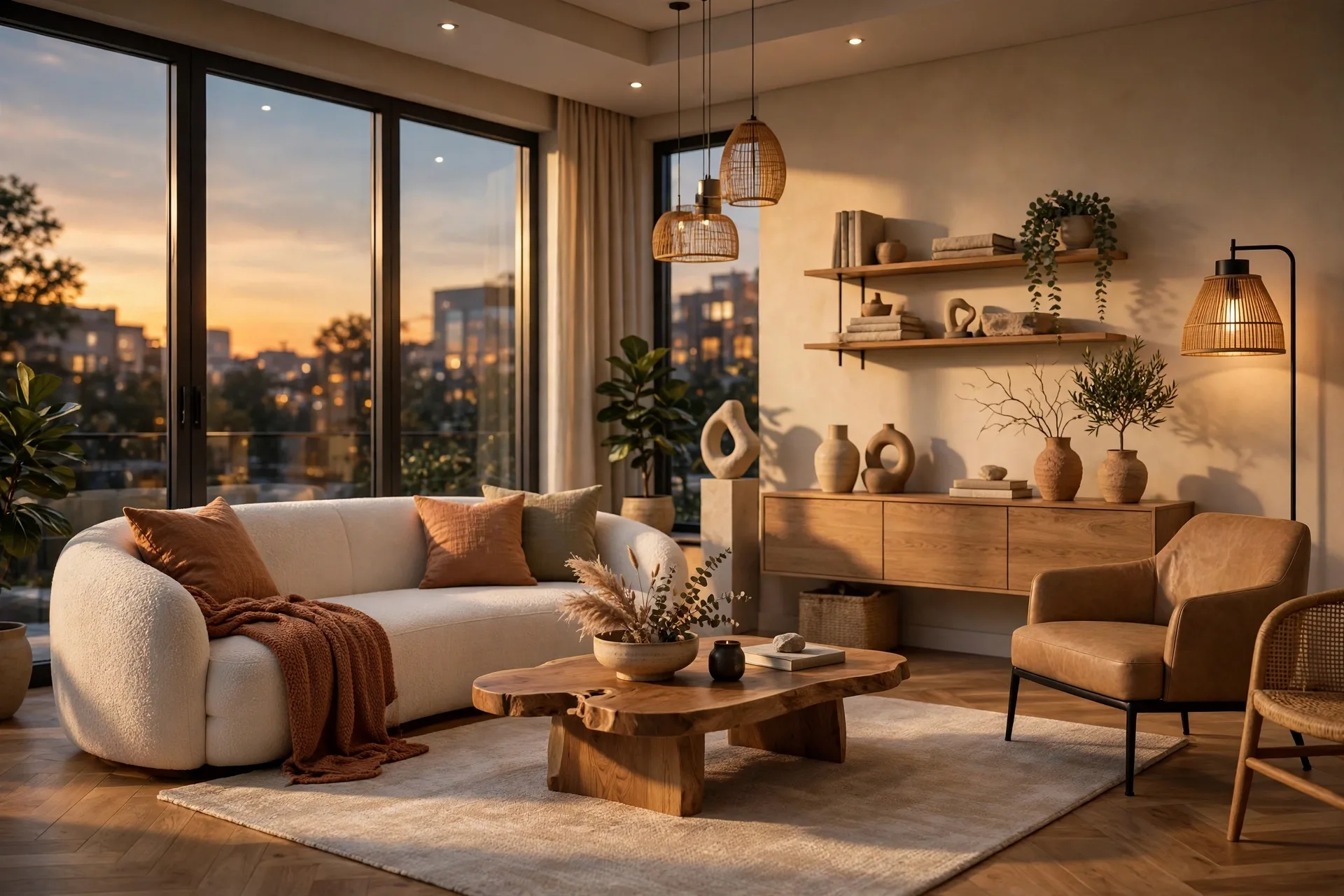
V-Ray for SketchUp: Beginner Guide to Photoreal Renders
V-Ray for SketchUp is the render engine many architects reach for when a project needs to look like a photograph, not just a nice 3D view. It runs inside SketchUp, so you never leave your modeling environment, yet it produces the soft shadows, realistic reflections, and accurate light that separate professional renders from quick previews. The catch is that V-Ray exposes a lot of controls, and beginners often get lost in settings before they understand light.
This beginner guide keeps the focus where it belongs: a simple, repeatable V-Ray for SketchUp workflow that produces a good first render. You will learn how to set up the renderer, build materials that behave like real surfaces, light an interior and an exterior, choose render settings that balance quality and speed, and fix the five mistakes every beginner makes. If you want the full journey from model to finished image, our SketchUp to photorealistic render workflow is the companion to this guide.
What V-Ray for SketchUp Is, and When to Choose It
V-Ray is a production render engine made by Chaos, and the SketchUp version plugs directly into SketchUp as an extension. You model as usual, then open the V-Ray Asset Editor, Frame Buffer, and render settings from the SketchUp toolbar. The model, cameras, and scenes stay in SketchUp, while V-Ray adds its own lights, materials, and render controls on top.
Choose V-Ray when realism matters more than speed: hero marketing images, client presentations where materials must read accurately, and interiors where light bouncing through rooms creates the mood. Choose a real-time engine like Lumion when you need instant feedback or animations on a tight deadline. Our Lumion beginner tutorial covers that faster path, so you can compare the two honestly before committing to one.
Setting Up Your First V-Ray Render
Start with a clean model. Purge unused components and materials, fix reversed faces so white front faces point outward, and delete geometry the camera will never see. V-Ray renders exactly what you give it, and a messy model produces artifacts no setting can fix.
Next, open the V-Ray Asset Editor and check three panels: Materials, Lights, and Settings. Set the renderer to Progressive if you are learning, because it shows a noisy preview that sharpens over time, and you can stop it when the image looks good enough to judge. Set the image size to 1600 pixels wide for test renders, and save final renders at 3000 pixels or more. Keep the default camera exposure on at first, and only adjust it after you understand how it interacts with light intensity.
Finally, pick one camera and lock it. Save a SketchUp scene for that view, and do not move it while you test materials and lights.
Materials: The Fastest Route to Realism
Beginners often start with render settings, but materials matter more. V-Ray materials describe how a surface interacts with light, using maps for color, roughness, bump, and reflection. A wood floor needs visible grain and soft reflection, concrete needs subtle color variation and bump, and glass needs transparency plus reflection. SketchUp flat colors have none of that, which is why raw SketchUp views look flat.
Build materials in this order: assign the V-Ray material, set its color or texture map, set roughness, then add bump at a low strength. Test each material in a small render before moving on, and keep values moderate. The most common beginner error is extreme values: roughness at zero makes everything look like chrome, bump at full strength makes walls look like gravel. Real surfaces are subtle, and your settings should be too.
Reuse what works. Save every good material to your own library with a clear name, such as oak floor matte. Within a few projects, material setup will take minutes instead of hours.
Lighting an Exterior: Sun, Sky, and Shadows
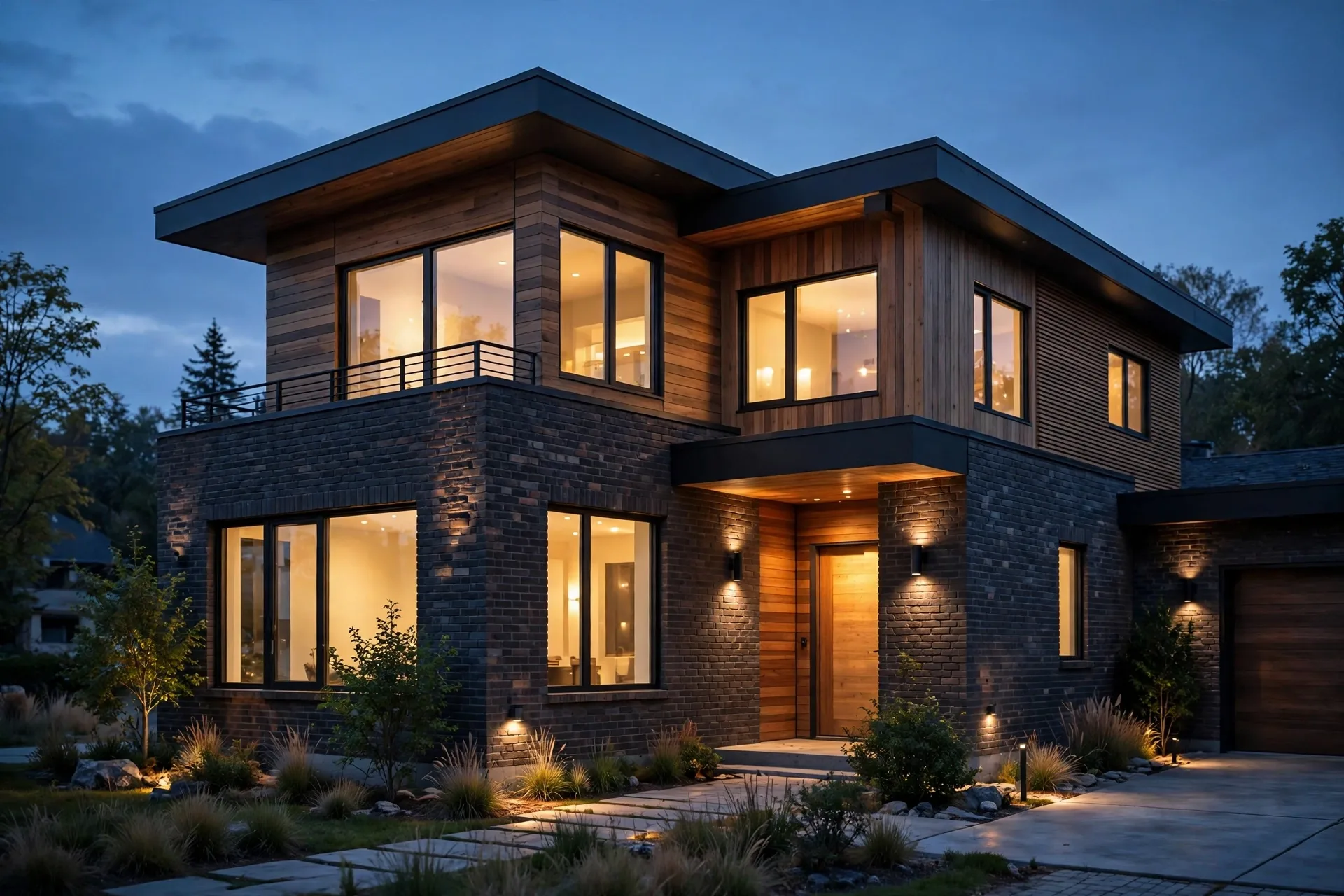
For exteriors, start with the V-Ray Sun and Sky system. Set the location, date, and time, and V-Ray will place the sun correctly and light the scene with a matching sky. Late afternoon light flatters most buildings: warm color, long shadows, and depth on facades. Midday sun is harsh and flat, so avoid it for hero views unless the brief specifically needs it.
Check shadows before you check anything else. Shadows should fall away from the sun, be soft at the edges for a large sun, and reveal form without hiding detail. If shadows are pitch black, raise the sky intensity or add a subtle dome light. If the sky looks washed out, lower its intensity rather than darkening the whole image in post-production.
Add an environment dome light only when you need soft, even light, such as an overcast day or a dense urban site where neighbours block direct sun.
Lighting an Interior: Daylight First, Lamps Second
Interiors follow one rule: get daylight working before you add a single lamp. Open the curtains in the model, set the sun so light enters through the windows, and render a test. If the room is dark, the problem is usually exposure or window glass blocking light, not a missing lamp. Check that glass materials are set to allow light through, and raise camera exposure in small steps.
Once daylight reads well, add artificial lights sparingly. Use V-Ray rectangle lights for soft window-like fill, sphere lights for lamps, and IES lights for spotlights with realistic falloff. Warm lamp color against cooler daylight creates the lived-in feel that makes interiors convincing. Keep lamp intensity modest, because overlit interiors look flat and lose the shadows that give rooms depth.
For pricing context, our 3D rendering cost per image guide shows what studios charge for interior views at this quality level.
Render Settings That Balance Quality and Speed
Render settings are where beginners waste the most time, so use a simple ladder. For test renders, use Progressive rendering at 1600 pixels, with noise threshold relaxed and a time limit of two to three minutes. Judge composition, light, and materials at this size, and fix problems here, where iteration is cheap.
For final renders, raise resolution to 3000 to 4000 pixels, tighten the noise threshold, and enable the denoiser. The denoiser removes grain without blurring detail, and it is the single biggest time saver in modern V-Ray. Render the elements you may need later, such as a material mask or an ambient occlusion pass, so post-production does not require a re-render.
On hardware, V-Ray can use CPU, GPU, or both. GPU rendering is faster for most scenes if your graphics card has enough memory, while CPU rendering handles very large scenes more reliably.
The Five Beginner Mistakes to Avoid
First, rendering from a messy model. Reversed faces, duplicate geometry, and unused components cause dark patches and flicker that no setting fixes. Clean first, always. Second, changing everything at once. Change one variable per test, or you will never know what worked.
Third, overbrightening. Beginners raise exposure and light intensity until the image glows, then wonder why it looks fake. Real rooms have dark corners, and real exteriors have shaded sides. Protect your shadows. Fourth, ignoring texture scale. A brick texture stretched across a whole wall or a wood floor with planks a metre wide betrays the render instantly, so set texture sizes to real dimensions.
Fifth, skipping post-production. The raw V-Ray output is about 90 percent of the image. In the V-Ray Frame Buffer or in Photoshop, apply gentle contrast, slight saturation, and careful sharpening, and the image will look photographed rather than rendered. Keep adjustments subtle, because heavy filters look artificial.
A Repeatable Beginner Workflow
Put it together as a checklist you can reuse on every project. Clean the model, lock one camera, assign materials from your library, set daylight and test, add lamps only for interiors, render small tests until light and materials read well, then render final at high resolution with denoising, and finish with gentle post-production. That loop takes a day for a first project and a few hours per view once you have a library and a routine.
Keep notes on what worked: sun settings, exposure values, and material values you return to. For timelines, our guide on how long 3D rendering takes gives realistic studio turnaround times.
Frequently Asked Questions
Is V-Ray for SketchUp hard to learn?
It is harder than a real-time renderer, but not hard in absolute terms. Most beginners produce a good first render within a week, because the core skills are materials and light, not software menus.
Do I need a powerful computer for V-Ray?
A modern multi-core CPU or a GPU with 8GB of memory or more handles most residential scenes. Very large commercial scenes need more memory, so start with smaller projects and scale up.
Can V-Ray for SketchUp do animations?
Yes, but animations take much longer than stills, since every frame must render. Beginners should master stills first, then try short clips of 10 to 15 seconds.
What is the difference between V-Ray and Lumion?
V-Ray prioritises maximum realism and control, while Lumion prioritises speed and ease. V-Ray wins for hero stills, Lumion wins for fast iterations and animations.
Should I use the denoiser on final renders?
Yes, in almost all cases. The denoiser removes noise cleanly and saves hours of render time, with only a tiny risk of softening fine detail at extreme settings.
How long does a V-Ray render take?
A test render takes two to five minutes, and a final still at 3000 pixels takes 20 minutes to two hours depending on scene complexity and hardware. Denoising cuts that time sharply.
Render Your First Photoreal Image
V-Ray rewards patience and method. Clean model, locked camera, honest materials, daylight first, small tests, then a careful final render, that is the whole secret, and it works on every project. Run through that loop on a single room or a single house exterior this week, and you will have a render you are proud to show. If a deadline needs that standard now, our studio renders with V-Ray every day: send us your SketchUp model and we will return photorealistic views without the learning curve. Contact our studio to start.
Written by
Architecture Designing Team
3D Visualization Studio