
Lumion LiveSync for SketchUp: Complete Workflow
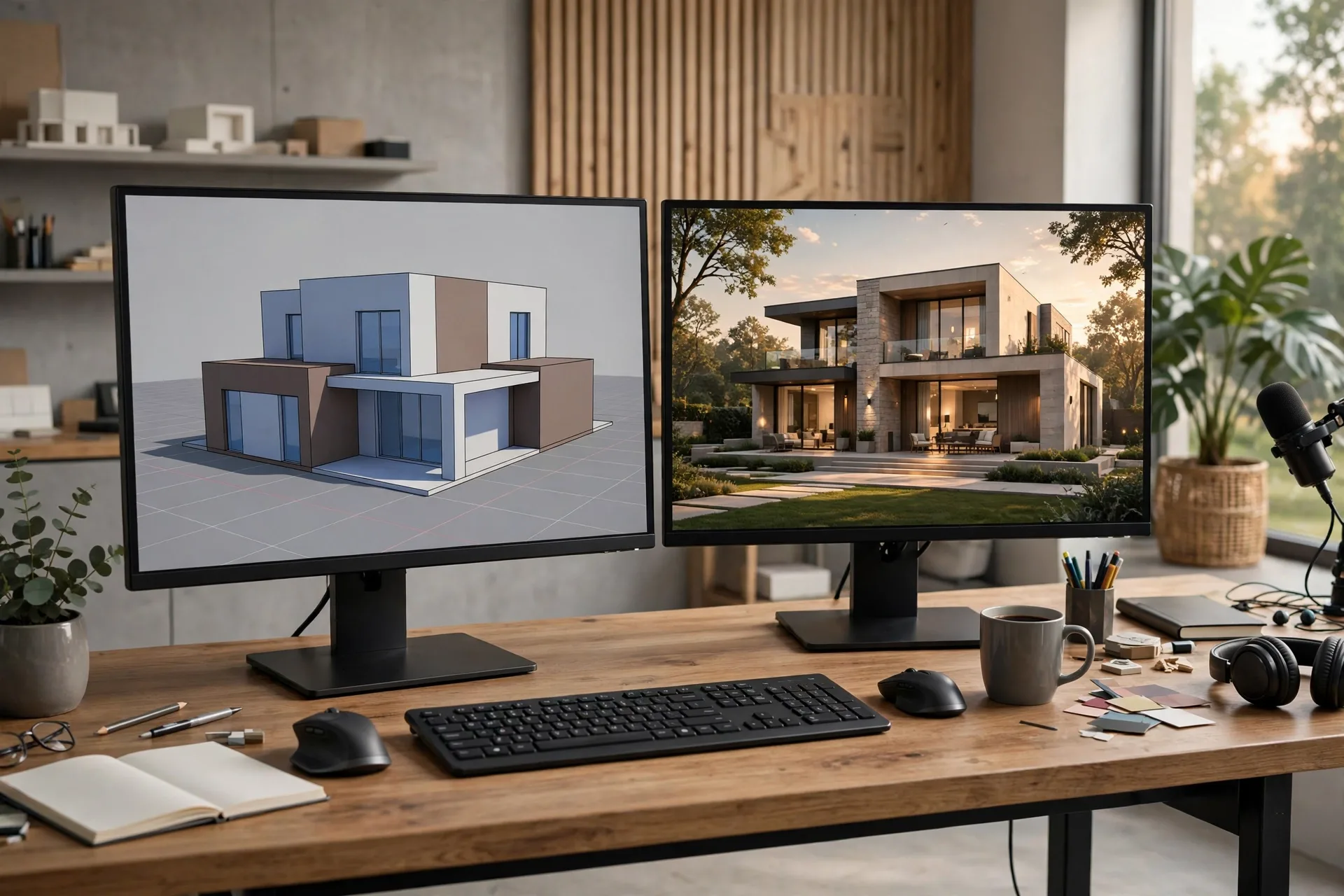
If you model in SketchUp and render in Lumion, you have probably felt the friction of the old workflow: export the model, import it into Lumion, set up materials and cameras, render a preview, spot a design change, go back to SketchUp, export again, and rebuild half the setup. Every round trip costs time and invites mistakes. Lumion LiveSync removes that round trip. It keeps SketchUp and Lumion connected in real time, so a wall moved in SketchUp moves in Lumion seconds later, with materials, cameras, and lighting already in place.
This guide explains the Lumion LiveSync SketchUp workflow from setup to daily use. You will learn how to install and start the connection, what syncs and what does not, how to manage materials and cameras across both programs, and how to use LiveSync for faster client reviews and animations. If you are new to Lumion itself, start with our Lumion tutorial for beginners first, then come back here to connect it to SketchUp.
What Lumion LiveSync Actually Is
LiveSync is a free plugin that links SketchUp to Lumion. It is available for SketchUp Pro and for Lumion Pro and Lumion Standard, and it works with the current versions of both programs. Once the link is live, SketchUp acts as the modeling side and Lumion acts as the visualization side. You edit geometry, groups, and components in SketchUp, and Lumion updates the scene in real time. You add trees, people, weather, lighting, and effects in Lumion, and those stay in Lumion while you keep modeling.
The key idea is separation of work. SketchUp owns the building. Lumion owns the presentation. That separation is what makes iteration fast: a client asks for a wider window, you change it in SketchUp, and the rendered view updates before the meeting ends. No export, no re-import, no lost camera positions.
Setting Up LiveSync Step by Step
Setup takes about ten minutes the first time and under a minute afterwards.
- Install the plugin: download Lumion LiveSync from the Lumion website or the Extension Warehouse, install it in SketchUp, and restart SketchUp. You will see a Lumion toolbar appear.
- Open both programs: open your SketchUp model first, then open Lumion and start a new project or open an existing one. The order matters, because LiveSync connects the open SketchUp model to the open Lumion project.
- Start LiveSync: click the LiveSync button in SketchUp. Lumion will import the model and show a live connection indicator. Geometry, materials, and SketchUp scenes arrive in Lumion automatically.
- Check scale and position: orbit in Lumion and confirm the building sits on the ground plane and at the right scale. If it floats or looks tiny, fix units and origin in SketchUp, not in Lumion.
- Save both files: save the SketchUp file and the Lumion project in the same project folder. Lumion stores its own materials, objects, and effects, so the two files together are the complete project.
What Syncs and What Does Not
Geometry syncs in both directions in the sense that SketchUp changes appear in Lumion, but Lumion objects never go back into SketchUp. Walls, roofs, windows, groups, and components update live. If you hide a tag in SketchUp, that content hides in Lumion too, which is useful for testing design options. If you move a component, every instance moves in Lumion, just as it does in SketchUp.
Materials need care. SketchUp material names carry across, and Lumion maps them to its own materials on first import. After that, Lumion material edits stay in Lumion. Changing a color in SketchUp will not overwrite a carefully tuned Lumion material unless you re-import or refresh that material, which is usually what you want. Camera positions also sync: SketchUp scenes become Lumion cameras, so a scene list planned in SketchUp becomes a shot list in Lumion.
What does not sync: Lumion trees, people, cars, weather, and effects, which live only in Lumion, and SketchUp styles and dimensions, which are modeling aids rather than render content.
The Materials Workflow That Actually Works
Materials cause most LiveSync confusion, so set a simple rule before you start. In SketchUp, name every material clearly: brick, white plaster, oak floor, clear glass. Do not leave default names like Material1, because Lumion will map by name and vague names create vague results. Use flat SketchUp colors as placeholders for the real material, and do the real material work in Lumion, where you control texture scale, roughness, and weathering.
When a material changes in the design, change its name or its SketchUp color to force a clear update, then retune it once in Lumion. For more on material quality, read our SketchUp to photorealistic render workflow.
Cameras, Scenes, and View Management
Good LiveSync work starts in SketchUp scenes. Create one scene per planned view before you connect: front hero, rear garden, living room, aerial. Give each scene a clear name and lock its camera. When LiveSync runs, those scenes appear in Lumion as cameras, ready for lighting and effects. This is faster than hunting for angles in Lumion, and it keeps the view list consistent when the model changes.
Inside Lumion, save each view as a photo or clip with its own sun, sky, and effects settings. If the client later asks for the same view from a slightly different angle, update the SketchUp scene, sync, and re-render. The rest of the setup stays untouched. For hero views, keep focal lengths between 24mm and 35mm for exteriors and 18mm to 24mm for interiors, so verticals stay straight and rooms do not distort.
Lighting, Skies, and Real-Time Iteration
LiveSync shines when you test light. Change the building in SketchUp, then in Lumion try a morning sun, a golden hour sky, and an overcast sky on the same view within minutes. Because the model updates live, you can answer real design questions in the meeting: does this roof overhang shade the terrace at noon, does the living room still get morning light if the window moves, does the facade read better in warm or cool light.
Use Lumion Real Skies for these tests, since the sky also lights the scene. Our Lumion Real Skies guide explains which sky suits each project type. Lock the chosen sky once the client approves a view.
Using LiveSync for Client Reviews and Animations
LiveSync turns a design review into a live session. Share your screen, open the Lumion view, and edit in SketchUp while the client watches the render update. Small changes land instantly, which builds trust and cuts the usual cycle of render, comment, wait, re-render. For larger changes, pause LiveSync, make the edit, and resume, so the client sees a clean before and after rather than a flickering model.
Animations benefit too. Build the camera path in Lumion, then refine the model in SketchUp without rebuilding the path. Keep major geometry stable once a path is approved, so the path does not break.
Troubleshooting Common LiveSync Problems
Most LiveSync problems have simple causes. If the connection will not start, check that both programs are the supported versions and that no firewall is blocking the local connection, then restart both programs and try again. If the model imports at the wrong scale, the SketchUp units or the distance from the origin are usually wrong, so move the model near the origin and confirm units match in both programs.
If materials look wrong after an update, check material names first, then check for reversed faces in SketchUp. If Lumion slows down, hide heavy SketchUp tags and lower editor quality while working. If a synced view looks empty, check whether a SketchUp tag was hidden by accident.

LiveSync vs Export: When to Use Each
LiveSync is the right choice for active design work, client reviews, and projects where the model will change. Export is still useful for a finished model that will never change again, for handing a file to another artist, or for archiving a project. Some artists export a final model at the end of a LiveSync project as a backup, which is sensible, but they do their daily work live.
One practical rule: if you expect more than two rounds of changes, use LiveSync. Studios that charge per image, as explained in our 3D rendering cost per image guide, prefer LiveSync because it cuts revision time.
Frequently Asked Questions
Is Lumion LiveSync free?
Yes, the LiveSync plugin for SketchUp is free, but it requires a Lumion license and SketchUp Pro. There is no separate subscription for the plugin itself.
Do I need a powerful computer for LiveSync?
You need a Lumion-capable GPU, ideally with 8GB of video memory or more, plus 16GB of RAM. LiveSync itself adds little load, but running both programs at once needs that headroom.
Can I use LiveSync with SketchUp Free?
No, LiveSync needs SketchUp Pro, because the web version does not support extensions. SketchUp Pro also gives you the desktop tools that professional models require.
What happens to my Lumion setup if the SketchUp model changes?
Lumion materials, objects, cameras, and effects stay in place while geometry updates. Only deleted geometry can break a setup, so avoid deleting objects that cameras or effects depend on.
Does LiveSync work with Revit and ArchiCAD too?
Yes, Lumion offers LiveSync plugins for Revit, ArchiCAD, Rhino, and Vectorworks as well as SketchUp. The workflow is the same: model in your CAD tool, present in Lumion.
Should beginners start with LiveSync or with export?
Start with LiveSync. It is simpler than export settings, it shows mistakes immediately, and it teaches the SketchUp to Lumion relationship faster than any manual workflow.
Start Working Live
LiveSync is not a minor convenience, it changes how a project feels. Design decisions get tested in rendered light the same day they are made, clients see their feedback appear in front of them, and the dreaded re-export cycle disappears. Install the plugin, name your materials, set your SketchUp scenes, and run your next project live. If a deadline is too tight to set this up yourself, our studio works this way every day: send us your SketchUp model and we will return presentation-ready views, with the same live workflow behind them. Contact our studio to start.
Written by
Architecture Designing Team
3D Visualization Studio