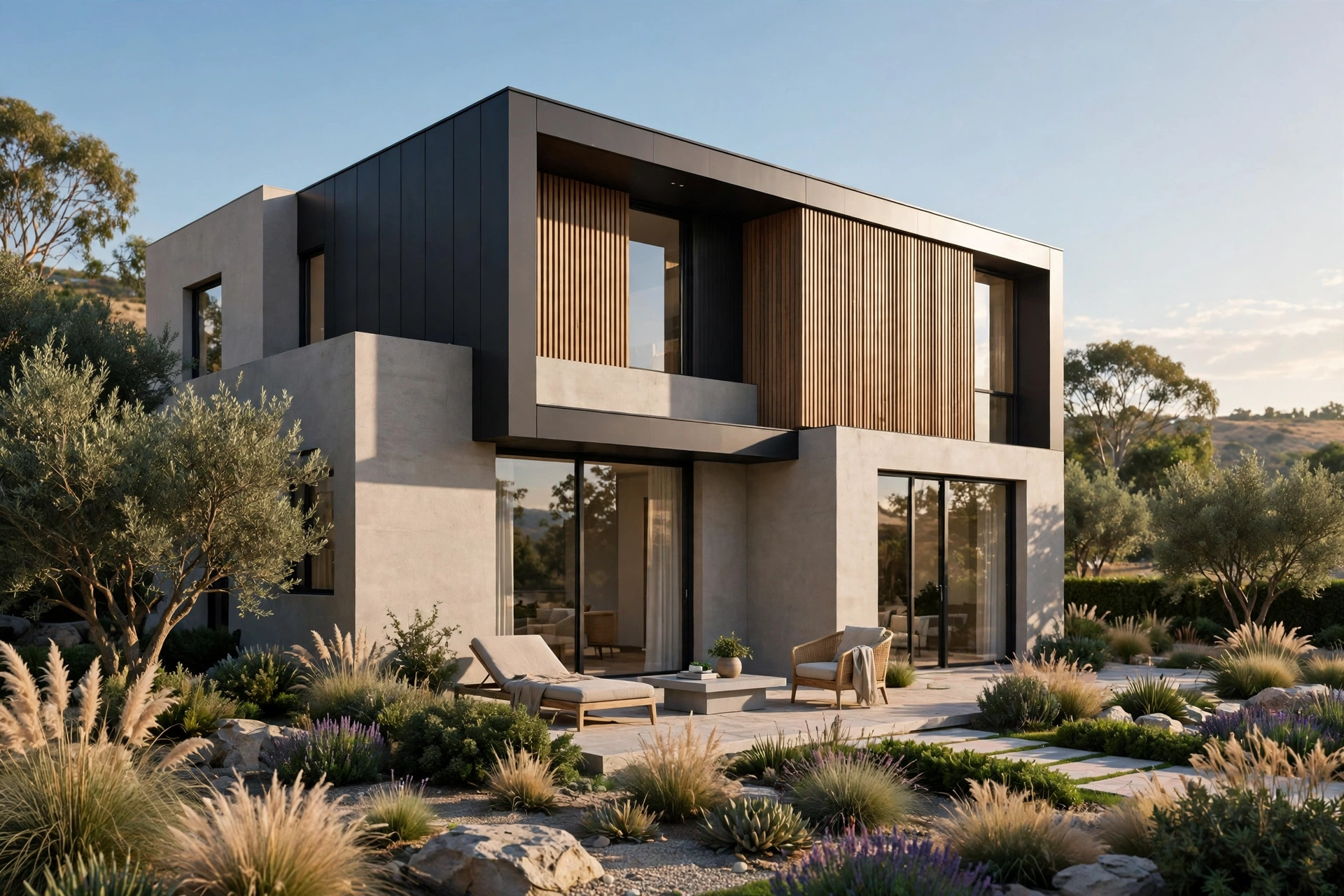
Lumion Tutorial for Beginners: Your First Render
Opening Lumion for the first time can feel exciting and a little overwhelming. The interface is full of buttons, the library holds thousands of trees, people, and materials, and your blank scene is waiting for a building. The good news is that Lumion was built for architects, not for 3D specialists, so your first good render is much closer than you think. Most beginners produce a presentable image within their first afternoon, and a genuinely strong one within a week of practice.
This tutorial walks you through the complete process, from importing a model to exporting a finished image. Follow the steps in order and you will avoid the mistakes that make most first renders look flat.
What You Need Before You Start
You need three things: a 3D model, a computer that can run Lumion, and a Lumion license or trial. Lumion works with models from SketchUp, Revit, ArchiCAD, Rhino, and Vectorworks. SketchUp is the most common starting point because the LiveSync connection lets you update the model and see changes instantly in Lumion.
On hardware, Lumion is a real-time renderer, which means it leans heavily on your graphics card. A gaming-grade GPU with at least 8GB of video memory, 16GB of system RAM, and a solid-state drive will give you a smooth experience. If your machine is older, do not worry: you can still learn the full workflow, but keep your first scenes small and turn down the editor quality while you work. You can always raise quality for the final render.
Before importing anything, clean up your model. Delete hidden geometry and stray objects, and give main surfaces clear material names, such as brick, glass, and concrete, because Lumion reads those names when assigning materials.
Step 1: Import Your Model
Start a new project in Lumion and choose a template scene that matches your project type, such as a residential exterior. Then import your model using the import button, or connect LiveSync if you work in SketchUp or Revit. With LiveSync, every change you make in your modeling software appears in Lumion within seconds, which makes design iteration fast and painless.
Once the model loads, check its scale and position. Buildings imported at the wrong scale look strange, with doors too tall or furniture too small. Place the model on the ground plane and rotate it so the main facade faces your planned camera view. If the model arrives far from the origin point, move it to the center of the scene so navigation stays comfortable.
Orbit around the building and look for missing walls or flipped faces. Fix these in your modeling software, not in Lumion, which cannot repair bad geometry.
Step 2: Set Up Materials
Materials are what separate a flat grey render from a believable image. In Lumion, click any surface to open the material editor. Start with the biggest surfaces first: walls, roof, glass, and ground. Assign a real material from the library to each one, then adjust its color, roughness, and scale until it looks right.
Pay special attention to scale. A brick texture stretched across a whole wall looks wrong, so use the scale slider to set bricks, tiles, and planks to realistic sizes. Keep glass reflections subtle by day and stronger at dusk.
Add subtle variation for realism: real concrete is never uniform and real wood has grain shifts. Lumion weathering controls break up flat surfaces, but use them lightly, since too much looks dirty. If you want to see how material quality changes what a finished project costs to produce, our guide to 3D rendering cost per image explains how studios price different quality tiers.
Step 3: Place Your Camera
Camera placement is the single most important creative decision in your render. A great model with a poor camera angle still produces a weak image. Start with the classic two-point perspective view: position the camera at eye level, about 1.6 meters high, and aim it slightly upward toward the building. This keeps vertical lines straight and makes the building feel solid and real.
For exteriors, the three-quarter view is safest: stand at roughly 45 degrees to the main facade so viewers see two sides plus the roof. Avoid extreme wide angles, which bend the building. A focal length of 24mm to 35mm suits most exteriors, while interiors suit 18mm to 24mm.
Use the rule of thirds: place the building slightly off center and keep the horizon out of the middle of the frame. Take several test shots before committing, since a test render costs only seconds.
Step 4: Add Light and Sky
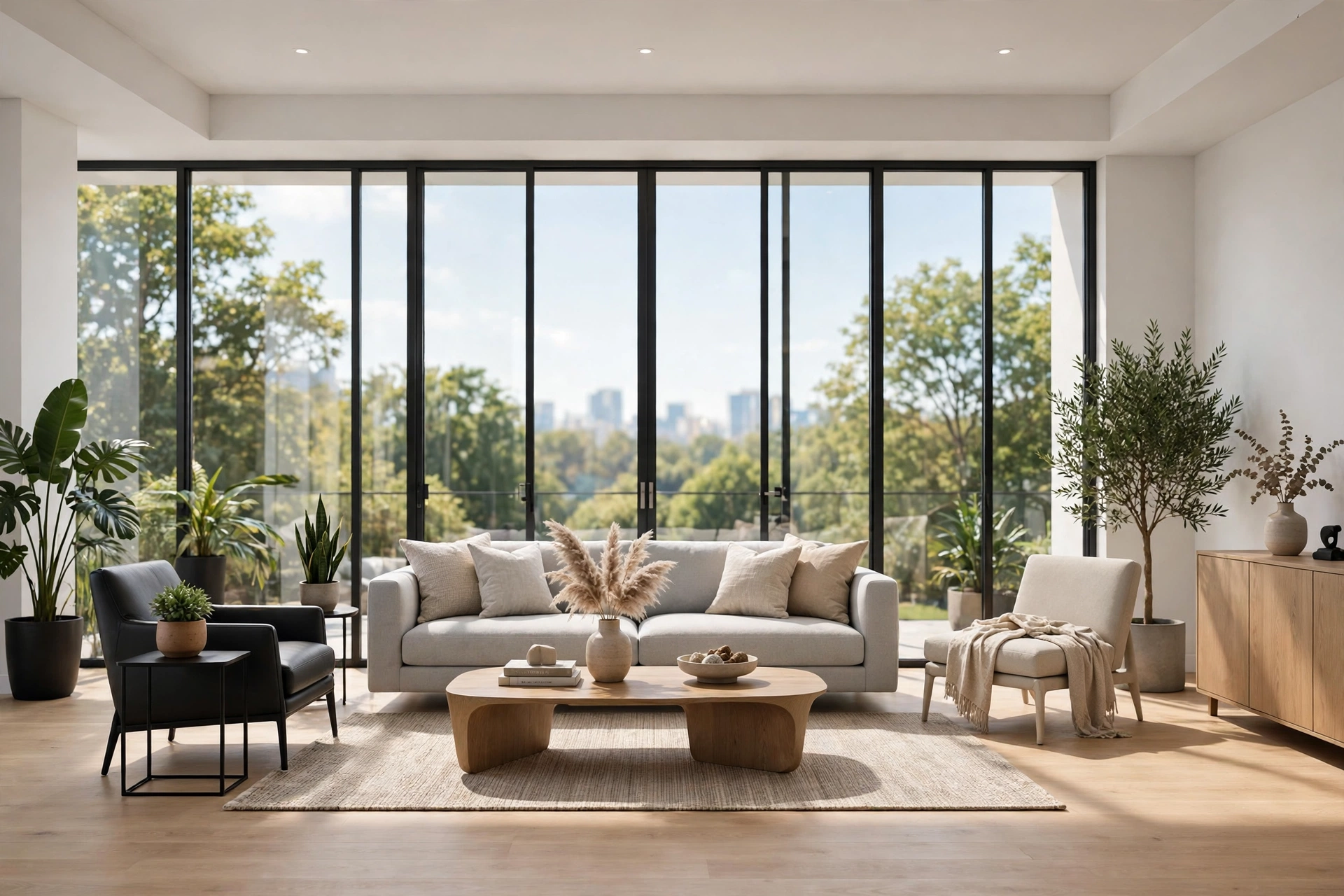
Lighting makes or breaks a render. Lumion offers two main daylight tools: the sun effect, which controls sun angle, height, and brightness, and the Real Skies system, which replaces the plain sky with photographic skies that also light the scene. For your first render, pick a Real Sky preset for a clear afternoon, then adjust the sun height until shadows fall in a pleasing direction.
Shadows deserve attention. Long shadows from a low sun add depth, but very dark shadows hide detail, so raise ambient brightness if shadow areas turn muddy. For interiors, let window daylight do most of the work and add lamps as accents.
Avoid rendering at midday with the sun overhead: the light is harsh and shadows are short. Late afternoon light gives warmer colors and longer shadows that model the building beautifully.
Step 5: Add Landscaping and People
Now bring the scene to life. Open the object library and add trees, shrubs, grass, and ground cover around the building. Place larger trees first to frame the view, then fill in with shrubs and plants. Keep planting believable: trees grow in soil and beds, not floating on driveways, and grass should follow the terrain.
Add people and cars sparingly. A few figures near entrances give scale and life, but a crowded scene distracts from the architecture, and nobody should block the main facade. One or two naturally parked cars beat a full lot.
Watch performance as you add objects. Use simpler trees in the background and detailed models near the camera, and hide layers you are not editing if the editor lags.
Step 6: Render and Export
When the scene looks right in the editor, open the photo render settings. For your first render, choose a resolution of 1920 by 1080 pixels and set the render quality to high. Enable the sky, sun, shadows, and reflections, and leave advanced effects at their defaults until you understand what each one does.
Press render and wait: a still at this size usually takes under a minute on a decent GPU. Check exposure, material sharpness, and anything out of place before rendering more views.
Export as PNG for maximum quality, or JPG for smaller email files. Keep the project file safe, because clients almost always ask for a changed angle later, and re-rendering takes minutes while rebuilding takes hours.
Common Beginner Mistakes
Most first renders share the same handful of problems. The most common is overexposure: lower sun brightness and raise shadow brightness instead of pushing one slider to extremes.
The second mistake is empty scenes: a building on a plain green plane with no paths or planting looks unfinished, no matter how good the materials are. The third is clutter, with too many objects competing for attention. Edit ruthlessly and keep the focus on the architecture.
Finally, beginners often skip post-processing. Lumion photo mode includes color correction, vignette, and sharpening. A gentle contrast and saturation boost usually makes the image pop, but keep adjustments subtle, since heavy filters look artificial. If you are comparing Lumion with other engines before committing to a workflow, our Lumion vs V-Ray vs Corona comparison breaks down speed, quality, and cost side by side.
How Long Your First Render Should Take
Budget about half a day for your first complete render, including learning time: an hour each for model cleanup and materials plus cameras, one to two hours for lighting and landscaping, and the rest for rendering and fixes. After three or four projects, one exterior view takes two to three hours.
Studios move faster by reusing material libraries, presets, and camera templates. Build your own library as you go, and save a starter scene with your favorite sky and lighting setup. For professional timelines, read our guide on how long 3D rendering takes.
Frequently Asked Questions
Is Lumion easy to learn for a complete beginner?
Yes. Lumion is designed for architects rather than 3D specialists, so most beginners produce a good first image within a day and feel confident after two or three projects.
Do I need a powerful computer to run Lumion?
Lumion needs a strong graphics card: a GPU with 8GB of video memory and 16GB of RAM is a practical minimum. Smaller scenes run on weaker hardware if you lower editor quality while working.
Can I use Lumion with SketchUp?
Yes, and it is one of the best combinations available. Lumion LiveSync shows SketchUp changes in real time, or you can import files directly for a one-time transfer.
How long does a Lumion render take?
A still at 1920 by 1080 pixels usually renders in under a minute on a modern GPU, while 4K takes several minutes. A 30-second animation can take from 30 minutes to several hours, since every frame must be rendered.
Is Lumion good for photorealistic renders?
Lumion can get very close to photorealism, especially for exteriors, and it is excellent for presentations and marketing. At the extreme high end V-Ray and Corona still lead for hero stills, but Lumion wins on speed and ease.
What is the best first project for learning Lumion?
Start with a single-family house exterior on a simple site. It teaches every core skill without the complexity of a large commercial scene. Then try an interior, which teaches artificial lighting and tighter camera work.
Your first render does not need to be perfect. It needs to teach you the workflow: import, materials, camera, light, landscaping, render. Repeat that loop and quality climbs fast. When a deadline is too tight to learn on the job, our studio can help: our interior rendering cost guide shows realistic 2026 prices per view, and our team turns drawings into presentation-ready visuals.
Written by
Architecture Designing Team
3D Visualization Studio