Realistic Interior Lighting in Renders: Full Guide
Lighting makes or breaks an interior render. Two renders of the same room can look completely different depending on how light enters, bounces, and fades across surfaces. Realistic interior lighting is not about adding more lights. It is about understanding how daylight and artificial light behave in real rooms, then recreating that behavior with the right tools and settings. This guide walks through the full process, from daylight strategy to lamp placement, with practical settings you can use today.
Start with daylight: the primary light source
In most interiors, daylight is the hero. It sets the mood, the color temperature, and the direction of shadows. The first decision is time of day. Morning light is cool and soft, midday light is bright and neutral, and late afternoon light is warm and directional. Each creates a different feeling, and the right choice depends on the room and the story the render should tell. A family living room often suits warm afternoon light, while a workspace benefits from bright, neutral daylight.
For daylight, use a physical sun and sky system or a high-quality HDRI. Both produce believable results, but they behave differently. A sun and sky system gives you precise control over sun angle and shadow direction, which matters when a client wants a specific time of day. An HDRI is faster to set up and provides realistic reflections in glass and glossy surfaces. Whichever you choose, keep the sun intensity realistic and let the sky do much of the fill work. Overpowering the sun creates harsh, burnt highlights that no real room has.
Control the light coming through windows
Windows are the main daylight delivery system, and they deserve attention. Real glass is rarely perfectly clean or perfectly transparent. Slight tint, subtle dirt, and reflections all affect the light entering a room. In your renderer, use a physical glass material with realistic thickness rather than a single flat plane, and check that window frames cast proper shadows. Thin, single-plane glass often produces incorrect light and missing frame shadows.
Sheer curtains are one of the most effective realism tools in interior rendering. They soften harsh sunlight, scatter it into a gentle glow, and add a layer of visual interest. Use a translucent material with a subtle pattern, and let light pass through it rather than blocking it completely. Blinds and shutters work similarly: they create patterned light and shadow that instantly reads as real. If a room feels too dark despite large windows, check the glass material and the number of light bounces before raising the sun intensity.
Layer artificial light like a lighting designer
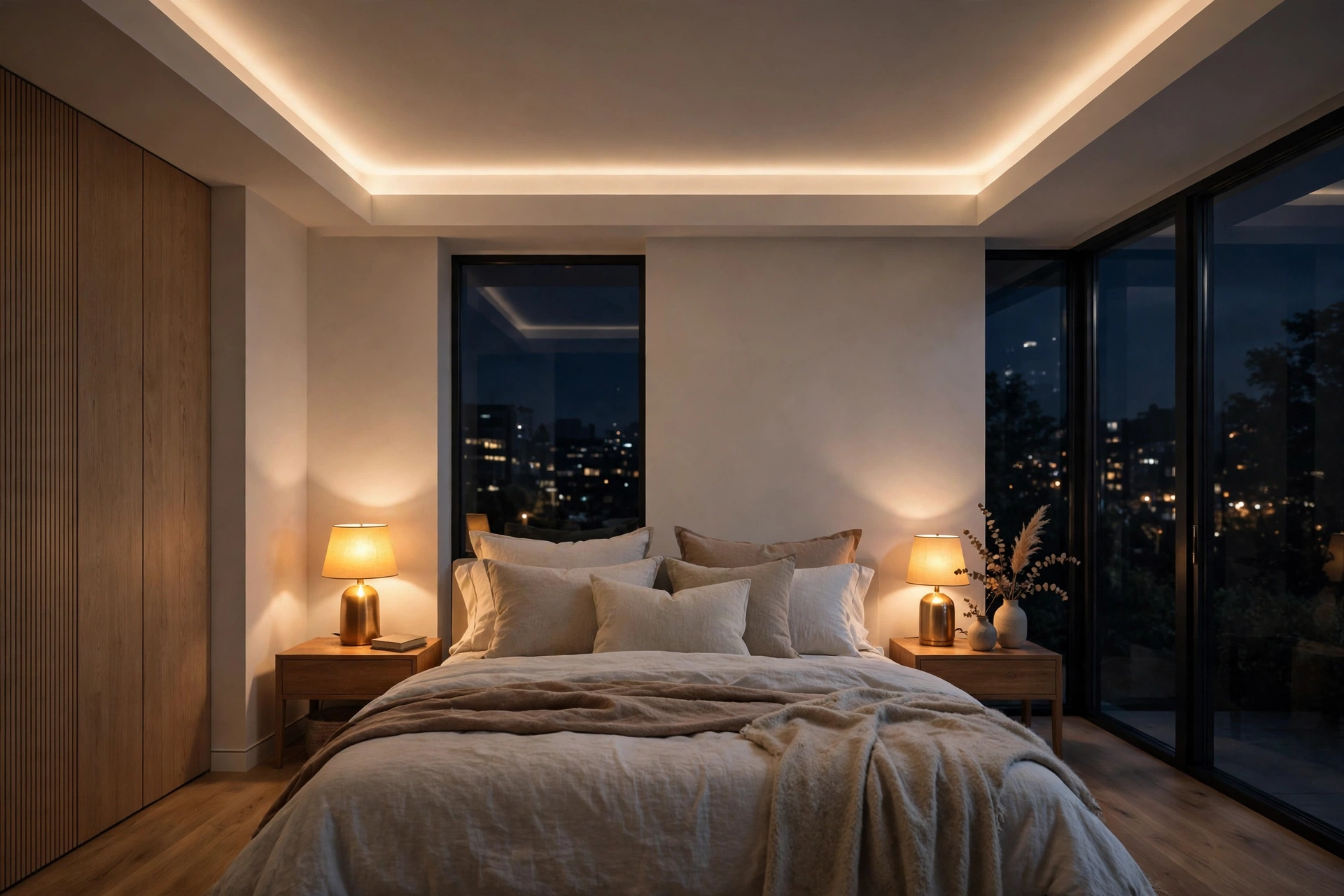
Real rooms use layered lighting: ambient light for general brightness, task light for work areas, and accent light for features. A render with a single ceiling light looks flat because real rooms never rely on one source. Start with ambient light from recessed ceiling fixtures or cove lighting, then add task lighting over kitchen counters, desks, and reading chairs, and finish with accent lights that highlight artwork, shelving, or architectural features.
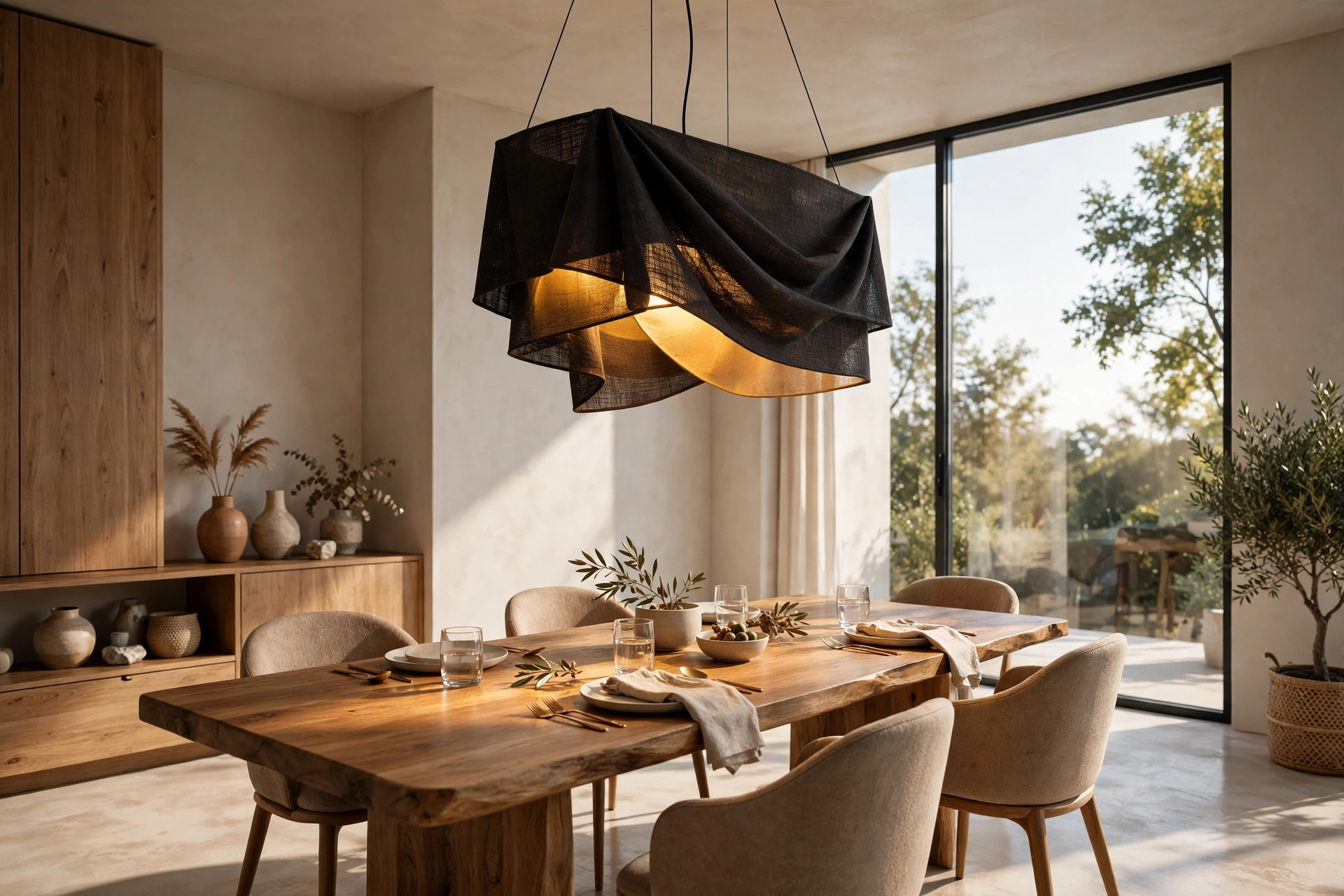
Every artificial light needs a visible source. A glowing ceiling disc with no fixture looks wrong, and a lamp that emits light but appears switched off breaks believability. Model the fixture, give the bulb or shade an emissive material, and match the light color to the fixture type. Warm white, around 2700K to 3000K, suits living spaces and bedrooms. Neutral white, around 4000K, works for kitchens and workspaces. Mixing color temperatures in one room is realistic only when it matches how the room would actually be lit.
Color temperature and mood
Color temperature is the fastest way to set mood. Warm light feels cozy and residential. Cool light feels clean and commercial. The most common beginner mistake is using pure white light everywhere, which looks clinical and flat. Real interiors mix temperatures: cool daylight from windows against warm lamps in the evening creates the contrast that makes a render feel alive.
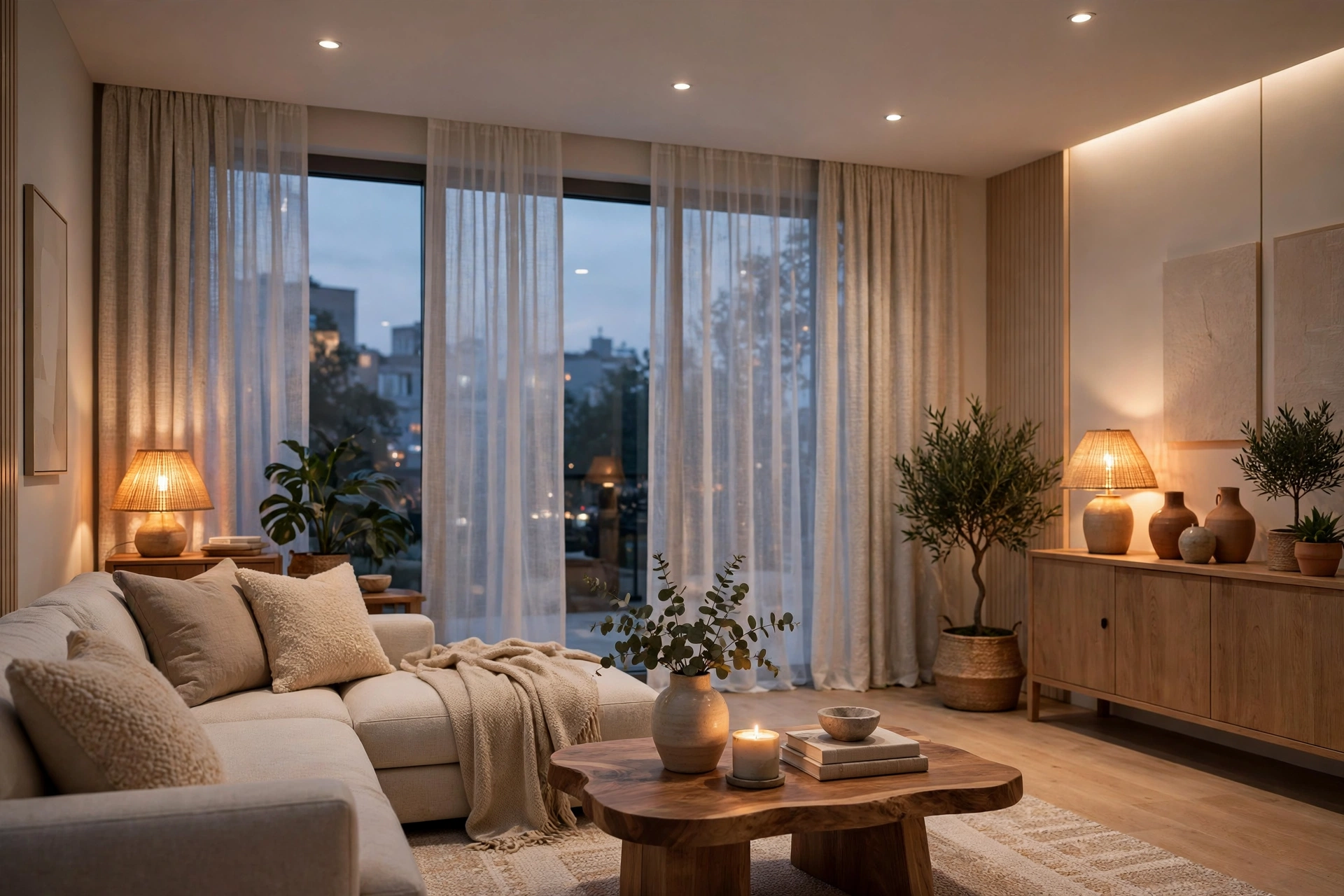
Evening renders are a good test of skill. The balance between fading blue daylight and warm interior lamps is delicate. If the interior lamps are too weak, the room looks gloomy. If they are too strong, the windows look dead. Aim for the moment when both contribute: the sky outside still holds some blue, and the lamps already glow warm. This is also the look clients love for marketing images, because it feels inviting. Our guide on how to make renders look realistic covers how this balance fits into the wider realism workflow.
Shadows, bounce light, and light leaks
Shadows give a render its depth. Soft shadows from large sources, like windows and softbox-style fixtures, look natural. Hard, razor-edged shadows usually mean a light source is too small or too intense. Increase the size of area lights to soften shadows, and keep shadow darkness believable: real shadows are rarely pitch black because bounce light fills them in.
Bounce light is what separates good renders from great ones. Light that hits a wooden floor warms the underside of furniture. Light from a bright wall fills the opposite side of a room. Make sure your renderer uses enough diffuse bounces, at least 3 to 4 for interiors, so this indirect light appears. Also check for light leaks: thin walls or single-plane geometry can let light bleed through where it should not. Giving walls real thickness and sealing gaps between geometry fixes most leaks.
Practical settings for common renderers
The principles are the same everywhere, but settings differ by tool. In V-Ray, use the Sun and Sky system with adaptive dome light for interiors, and enable the light cache plus brute force GI for clean bounce light. In Corona, the Sky object with a sun gives excellent daylight, and the LightMix feature lets you adjust each light's intensity after rendering, which is invaluable for balancing evening scenes. In Lumion, Real Skies provide fast, believable daylight, and the built-in light objects with soft shadows handle artificial sources well. For step-by-step setup in one of these tools, see our Lumion Real Skies guide and our V-Ray for SketchUp beginner guide.
Whatever the tool, follow the same testing habit: render small test images at low resolution while adjusting lights, and only commit to a full-quality render when the lighting balance looks right. Test renders at 800 to 1000 pixels wide are fast and reveal nearly every lighting problem. Chasing lighting issues at final resolution wastes hours.
Common interior lighting mistakes
- Using only one light source, which flattens the whole room
- Pure white light everywhere instead of realistic color temperatures
- Lights with no visible fixture or switched-off lamps that still glow
- Overexposed windows that blow out to white and lose all detail
- Shadows that are too dark because bounce light is missing
- Too many lights competing, which destroys the sense of a key source
Frequently asked questions
How many lights should an interior render have?
There is no fixed number, but most good interior renders use 5 to 12 light sources: daylight plus a handful of fixtures. What matters is hierarchy: one dominant source, a few supporting lights, and nothing competing for attention.
Should I use HDRI or a sun and sky system indoors?
Both work well. HDRI is faster and gives great reflections. A sun and sky system gives precise control over time of day and shadow direction. Many artists use HDRI for reflections and add a sun for directional shadows.
Why does my interior render look dark even with many lights?
Usually the cause is too few diffuse bounces, glass that blocks too much light, or exposure set too low. Raise bounce count first, check the glass material, and only then increase light intensity or exposure.
What color temperature should I use for living rooms?
Warm white, 2700K to 3000K, for lamps in living rooms and bedrooms. Pair it with natural daylight from windows. Kitchens and workspaces can go to 3500K to 4000K for a cleaner, more functional feel.
How do I render a convincing evening interior?
Balance fading daylight with warm lamps. Keep some blue in the sky outside, let lamps glow warm inside, and avoid making either source dominate completely. Corona LightMix or V-Ray Light Select elements make this balance easy to tune after rendering.
How much does professional interior rendering cost?
In 2026, interior renders typically cost 200 to 800 dollars per view, depending on room complexity, number of views, and revision rounds. Our interior rendering cost guide breaks down room-by-room pricing in detail.
Great interior lighting comes from observation more than software. Look at real rooms at different times of day, notice where light pools and where shadows soften, and compare your test renders against those references. Once the lighting feels right, the rest of the image, materials, furniture, and composition, falls into place. If you need interior renders for a project, our studio handles lighting, materials, and post-production as one package: send your drawings and we will return a fixed quote with a clear delivery date. See how our rendering services work or contact us through the contact page to get started.
Written by
Architecture Designing Team
3D Visualization Studio