Photorealistic Materials Guide for Renders
Photorealism in architectural rendering is won or lost on materials. Lighting gets the attention, and cameras get the credit, but when a viewer says a render looks real, they are usually reacting to wood that looks like wood, stone that feels heavy, and fabric that looks soft enough to sit on. This guide explains how photorealistic materials work, which texture maps actually matter, and how to build wood, stone, metal, glass, concrete and fabric so they survive a close-up, not just a wide shot.
What Makes a Material Look Photorealistic
A photorealistic material does three things at once. First, it shows the right colour and pattern for the real material, with natural variation rather than a repeated, uniform fill. Second, it reacts to light the way the real material does: glossy where it should shine, matte where it should absorb, rough where it should scatter. Third, it has surface relief: tiny bumps, pores, grain and weave that catch light and shadow at close range. Miss any one of these and the eye notices, even if the viewer cannot name the problem. A flat colour fails the first test, a wrong gloss level fails the second, and a perfectly smooth surface fails the third.
Modern renderers handle this with PBR, or physically based rendering, materials. Instead of one colour value, a PBR material is a set of maps that describe different properties of the same surface. The renderer combines them to simulate how light actually interacts with that surface. You do not need to understand the physics in depth. You need to know which maps to use, what values are believable, and how to check scale, because those three habits cover most material mistakes.
The Texture Maps That Actually Matter
Colour, or albedo map. This is the base colour and pattern of the material, photographed or painted without strong shadows or highlights baked in. A good albedo map has even lighting, because shadows painted into the texture will double up with the renderer's own shadows and look dirty. Avoid overly saturated stock textures. Real wood, stone and fabric are usually more muted than the first image in a search result.
Roughness map. This controls how shiny or matte each part of the surface is. White means rough and matte, black means smooth and glossy, and greys sit in between. Polished marble is dark on a roughness map, brushed metal is mid-grey with variation, and raw concrete is light grey and uneven. A map with variation, even subtle variation, instantly looks more real.
Bump or normal map. Bump maps fake surface relief by shading, while normal maps store direction data and give more convincing detail on curved or angled surfaces. Either way, the point is the same: grain, pores, joints and weave need relief to catch light. Keep bump strength low. Over-strong bump makes wood look carved and concrete look like gravel. Start subtle, render a close-up test, and increase only if the surface still reads as flat.
Other maps, used sparingly. Metalness maps tell the renderer which parts are metal and which are not. Most non-metal surfaces should have metalness at zero, a common beginner error is leaving it on for wood or plastic. Displacement maps actually move geometry for deep relief, useful for stone walls and brick, but heavy and slow, so reserve them for hero surfaces. Ambient occlusion maps add contact darkening in crevices, helpful on complex geometry, but many renderers now generate this automatically.
Material by Material: Values That Work
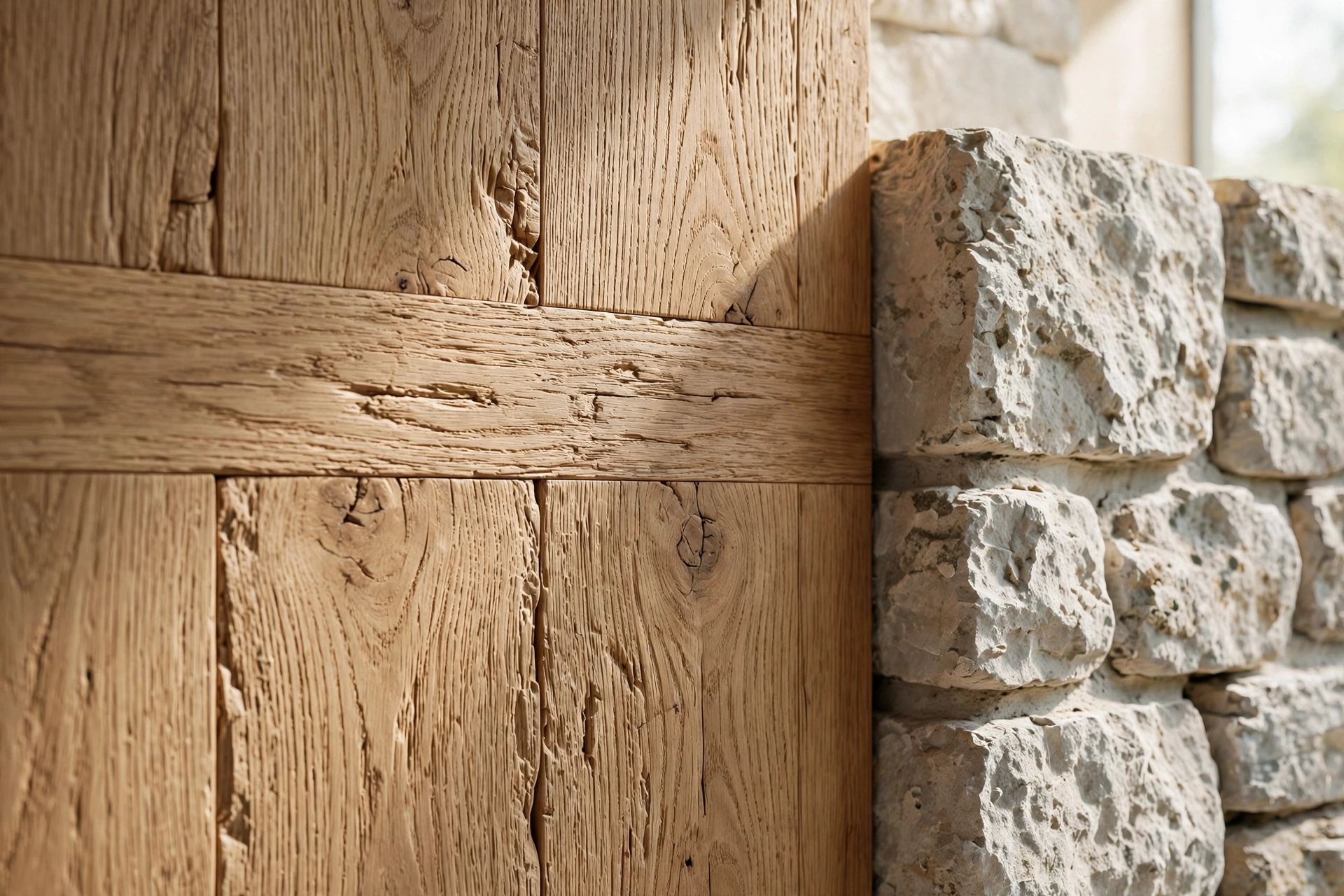
Wood. Use a real wood texture with visible grain direction, and align the grain along the plank or panel, never across it. Oak and walnut floors typically use planks 120 to 200mm wide, so set texture scale in real units. Roughness should be mid-range for oiled wood and higher for raw timber, with slight variation along the grain. A light bump map following the grain direction sells the surface in close-ups without looking carved.
Stone and marble. Stone needs large-scale variation: veins, mineral patches and subtle colour shifts across slabs. Marble in particular fails when the same small texture repeats on every slab. Use a large texture, vary rotation and offset between slabs, and keep roughness low but uneven for polished marble, higher for honed stone. Book-matched marble, where two slabs mirror each other, is a classic luxury detail worth modelling properly.
Metal. Metals are defined by reflections, so the environment matters as much as the material itself. A chrome tap in an empty grey scene will look black because it has nothing to reflect. Give metals something to reflect: windows, lights, sky and surroundings. Brushed steel needs a roughness map with fine directional streaks, while polished brass and chrome need very low roughness and correct metalness at full value.
Glass. Glass is transparent, reflective and refractive all at once, and beginners usually get only one of the three right. Set a realistic index of refraction, around 1.5 for standard glass, keep the glass slightly tinted rather than pure white, and make sure there is something behind and around it to reflect and refract.
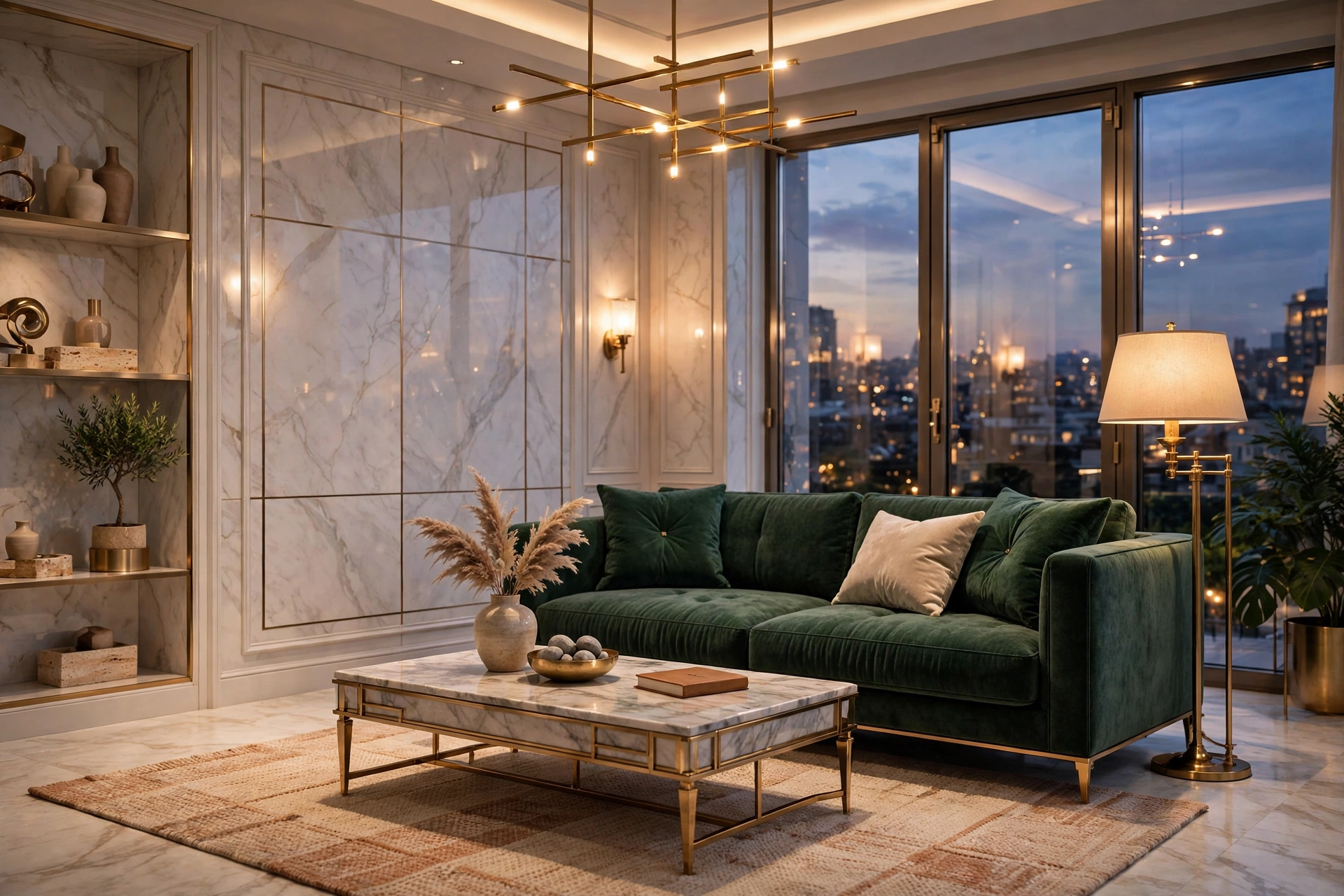
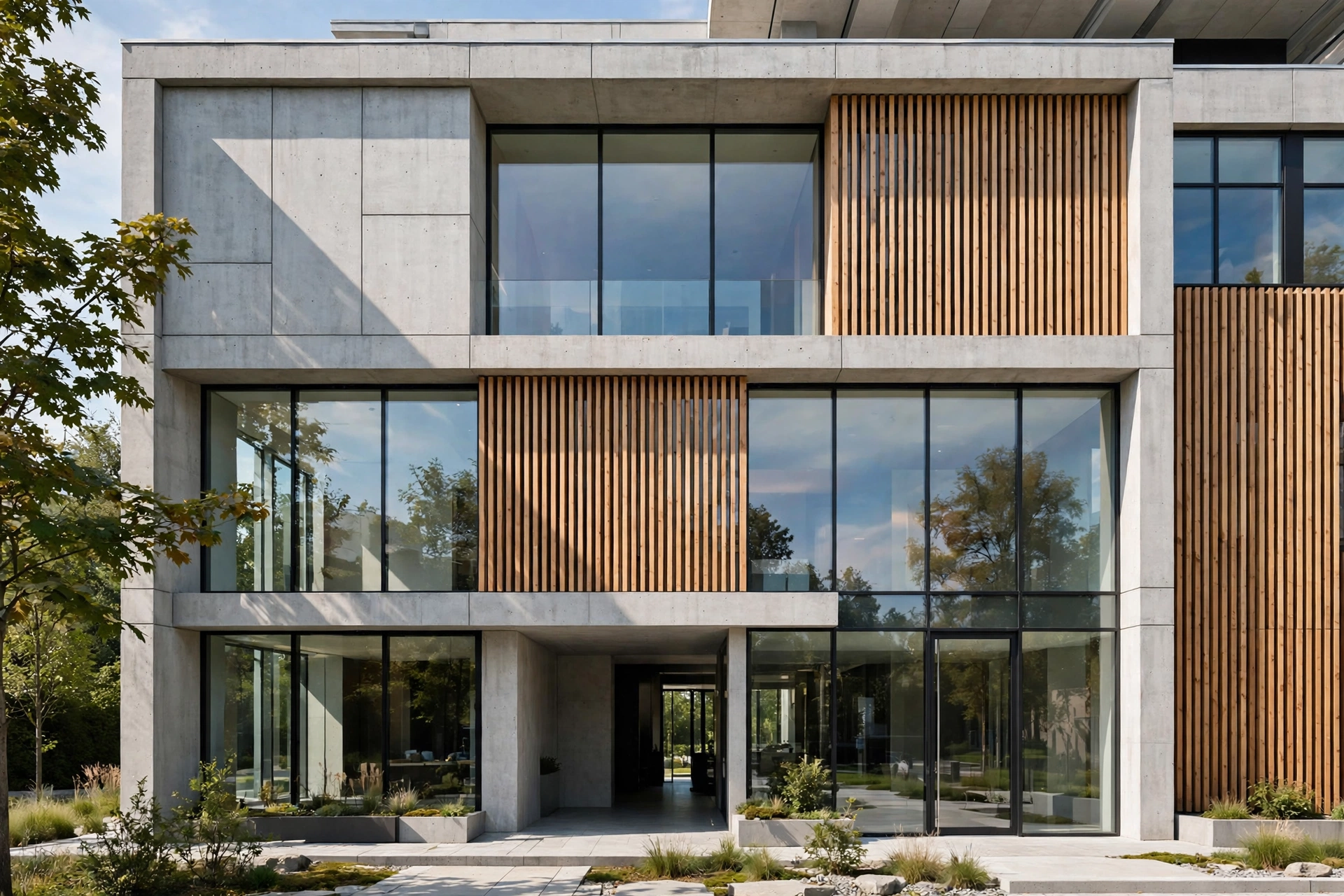
Concrete. Good concrete is uneven by nature: pores, formwork marks, slight colour patches and weathering streaks. A perfectly uniform grey slab looks like painted plaster. Use a concrete texture with pores and patch variation, keep roughness high, and add a subtle bump map. For exterior concrete, add faint vertical weathering below joints and edges, where rain actually stains the surface.
Fabric and soft furnishings. Fabric fails when it is too smooth and too saturated. Real sofas, curtains and cushions have weave, slight fuzz at edges, and soft, uneven colour. Use a fabric texture with visible weave, keep roughness high, and add a sheen or fuzz effect if your renderer supports it. Slightly desaturate strong colours, and vary cushion fabrics a little rather than using one identical material for every soft item in a room.
Scale, Tiling and Repetition: The Quiet Killers
Scale is where many good texture sets go wrong. A texture file has no real size until you tell the renderer how large one repeat is in the scene. Set it in real units: a floor texture repeat might cover 2 metres by 2 metres, a brick texture might cover 1 metre by 1 metre. Then check it in a test render at the camera distance you will actually use. A texture that looks right from across a room can look like wallpaper paste in a close-up, and a texture tuned for a close-up can look noisy from far away. For more on scale and camera discipline, see our guides on how to make renders look realistic and best camera angles for architectural renders.
Repetition is the second quiet killer. The human eye spots a repeated pattern fast, especially on floors and walls. Break repetition by rotating and offsetting texture repeats, using larger texture files, and varying roughness slightly between repeated elements. For floors, offset plank rows and vary plank tone a little, just as a real floor layer would. The extra five minutes here saves the whole render from looking tiled.
A Practical Workflow for Building Materials
Start with a quality texture library, not a random image search. Libraries built for archviz, such as Poliigon, Quixel Megascans and the material libraries inside V-Ray, Corona and Lumion, provide matched map sets at consistent scale, which removes half the guesswork. Next, set real-world scale before you judge the look. Then render a small close-up test of the hero material, the surface closest to the camera, and check colour, gloss and relief there. Only after the hero material passes should you apply the same discipline to secondary surfaces. Finally, check materials under the final lighting, not under default studio lighting, because colour temperature and light direction change how every material reads. Lighting and materials must be judged together, as covered in our realistic interior lighting guide.
FAQ
Do I need PBR textures, or is a single colour image enough?
A single colour image is enough only for distant, out-of-focus surfaces. For any surface near the camera, you need at least colour, roughness and bump maps, otherwise the material will look flat and plastic in the final render.
What resolution should my textures be?
Use 2K textures for most surfaces and 4K for hero surfaces close to the camera. Higher resolution than that rarely helps and slows rendering, while 1K textures often blur visibly in close-ups or large prints. Match resolution to camera distance.
Why does my metal look black in renders?
Metal reflects its surroundings, so in an empty scene it has nothing to reflect and goes dark. Add windows, sky, lights and surroundings to the scene, or use an HDRI environment, and the metal will immediately read correctly.
How do I stop floor textures from repeating obviously?
Use a larger texture, offset plank rows, vary plank tone slightly, and rotate or offset repeats. Check the floor in a test render from the actual camera angle, because repetition that is invisible from above is obvious at eye level.
Should I use displacement maps for stone and brick?
Use displacement only on hero surfaces where deep relief will actually be seen, such as a close-up stone wall. For most surfaces, a good bump or normal map gives the same visual result at a fraction of the render time.
Can I fix bad materials in Photoshop after rendering?
Only slightly. Colour and contrast can be adjusted in post-production, but wrong scale, missing relief and incorrect gloss cannot be convincingly rebuilt afterwards. Fix materials in the 3D scene, and use post-production for finishing, as explained in our render resolution guide workflow for final output quality.
Final Thoughts
Great materials are built, not found. Choose matched PBR sets, set real-world scale, keep roughness believable, add subtle relief, and judge everything under final lighting with a close-up test. Do that consistently and your renders will stop looking rendered and start looking photographed. If you are preparing marketing visuals and want materials, lighting and cameras handled by a studio that does this daily, get in touch with our team for a tailored quote.
Written by
Architecture Designing Team
3D Visualization Studio