Corona Renderer Beginner Guide for Architects
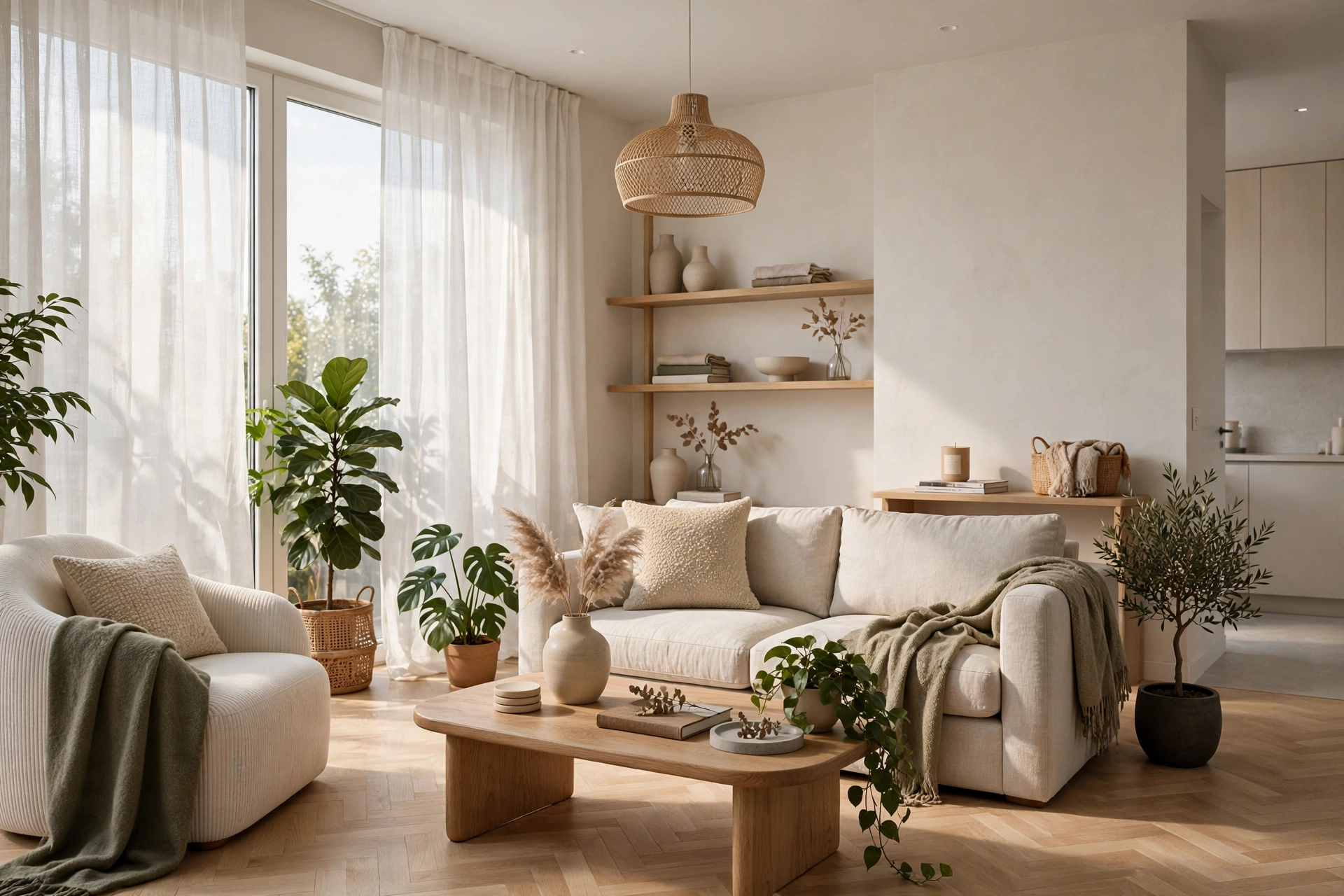
Corona Renderer has a reputation that every beginner loves to hear: beautiful, physically accurate light with far less tweaking than other offline renderers. It is the tool behind many of the most convincing interior images you see online, and it earns that reputation honestly. This beginner guide covers what Corona is, how to set it up, how materials and lighting work, and the render settings that produce your first great image, plus the mistakes that slow most beginners down.
What Is Corona Renderer?
Corona is a photorealistic offline renderer developed by Chaos, the company behind V-Ray. Unlike real-time tools that approximate light for speed, Corona calculates light physically: sunlight bounces off walls, fills rooms, and picks up color from surfaces, which is why its interiors look naturally lit with very little effort. It runs as a plugin inside 3ds Max and Cinema 4D, so you model and render in the same program. Corona is known for its interactive rendering, which updates the image live as you change materials or lights, and for LightMix, a feature that lets you adjust every light in a finished render after the fact. A solo license costs roughly $300 to $400 per year through Chaos, with a free trial so you can test it on a real project before paying.
Getting Started: Setup and First Scene
Start by installing Corona and setting it as the active renderer in your scene, then open the Corona render settings panel. The most important beginner decision is the render mode: use Interactive Rendering while you work, so every material or light change appears in seconds, and switch to the full production render only for the final image. Keep your scene units consistent, clean up stray geometry, and set a sensible output size for tests, such as 1200 pixels wide, so iterations stay fast. Beginners should resist the urge to render at full 4K resolution while still learning: test small, fix problems early, and commit to the final resolution only when the image already looks right. Our Lumion beginner tutorial follows the same test small, finish big discipline, and it transfers well to Corona.
Materials: Keep Them Simple and Physical
Corona materials reward a simple approach. Start with the Corona Physical Material, which behaves like real surfaces: set a diffuse color or texture map, then control roughness for how matte or glossy the surface is, and reflection for mirrors and polished stone. The single biggest beginner mistake is overdoing reflection and gloss, which makes wood look plastic and floors look wet. Use real-world texture maps wherever possible, keep roughness values in believable ranges, and add a subtle bump map to break up flat surfaces like plaster and concrete. For glass, use the dedicated Corona glass settings rather than a generic transparent material, or windows will render dark and unconvincing. Build a small personal library of materials you have tested, wood floors, white walls, brushed metal, fabric, and reuse them across projects instead of rebuilding from scratch every time.
Lighting: The Heart of a Corona Render
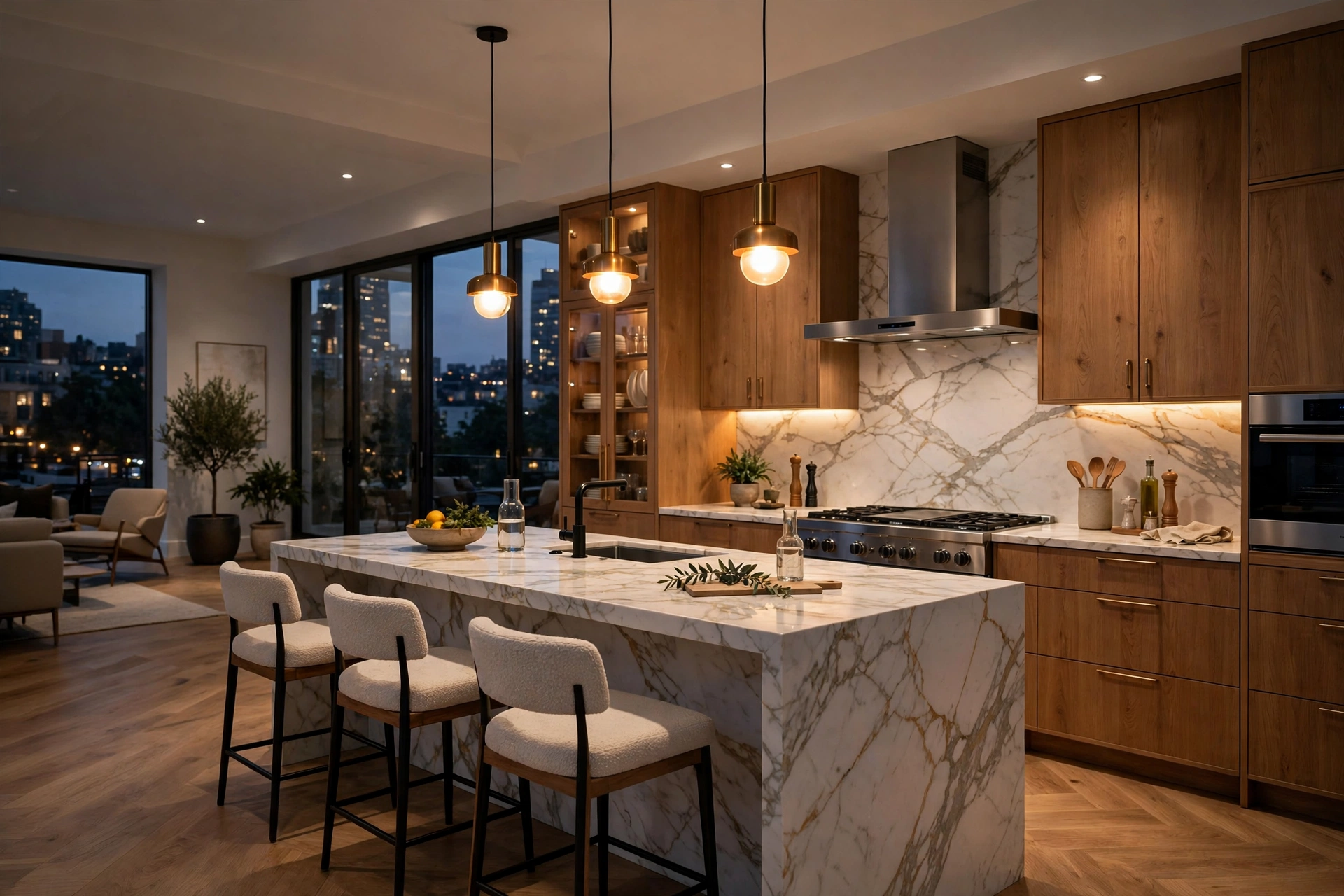
Lighting is where Corona earns its reputation, and also where beginners waste the most time. Start with the Corona Sun and Sky for daylight: set the sun position for the time of day you want, and let the sky model handle the ambient light. For interiors, the classic setup is daylight through windows plus a few warm artificial lights for mood, and Corona handles the balance naturally. HDRI environment maps are the fastest route to realistic light for exteriors and for rooms with large windows, because one image provides sun, sky, and reflections at once. Keep artificial lights physically plausible: a ceiling lamp should be a small bright source, not a huge glowing sphere, and every light should have a reason to exist in the room. If you are choosing between renderers for your practice, our best rendering software guide compares Corona with V-Ray, Lumion, Enscape, and D5 Render on quality, speed, and price.
Camera, Render Settings, and Denoising
Set your camera before you fine-tune anything else. Use a realistic focal length, typically 24 to 35 mm for interiors, keep vertical lines straight with the camera's vertical shift or tilt correction, and place the camera at eye height, around 1.5 meters, unless the shot calls for drama. In the render settings, the two numbers that matter most are the noise limit and the denoiser. Corona renders progressively, cleaning noise over time, so set a noise limit around 3 to 5 percent for finals and let the built-in denoiser finish the job. For tests, use a higher noise limit and lower resolution so each iteration takes minutes, not hours. Enable render elements for the passes you may need later, such as a LightMix element, a material ID pass, and a depth pass, because they cost little during rendering and save a full re-render during post-production.
Post-Production: Small Adjustments, Big Difference
Almost every professional Corona image gets a light pass in post-production, and beginners should plan for it. Use the LightMix element to rebalance lights after rendering: dim an overpowering ceiling light, warm up a lamp, or cool down daylight, all without re-rendering. In Photoshop or a similar editor, adjust exposure, contrast, and white balance gently, add a touch of vignette, and sharpen only slightly. The goal is enhancement, not rescue: if the raw render needs heavy fixing, the problem is in the scene, usually lighting or materials, and fixing it there produces a better image than any filter. Keep a before and after copy of your first few projects to train your eye for what post-production should and should not do.
Common Beginner Mistakes to Avoid
- Rendering at full resolution too early: test at low resolution and fix problems while iterations are cheap.
- Too many lights: every light should have a visible source in the room; extra lights flatten the image.
- Over-glossy materials: high reflection on every surface looks fake; keep roughness realistic.
- Ignoring the camera: a crooked camera or extreme wide angle ruins an otherwise good render.
- Skipping the denoiser: render to a sensible noise limit and let denoising finish, instead of waiting hours for a perfectly clean raw image.
- No render elements: skipping LightMix and material ID passes removes your cheapest safety net in post-production.
A Simple First-Project Workflow
- Model or import the room, clean up geometry, and set consistent scene units.
- Place the camera at eye height with a 24 to 35 mm focal length and straight verticals.
- Apply simple physical materials from your tested library.
- Set up daylight with Corona Sun and Sky, then add two or three artificial lights for mood.
- Run interactive rendering at low resolution and fix materials and light balance.
- Render the final at a 3 to 5 percent noise limit with denoising and LightMix enabled.
- Rebalance lights in post-production and apply gentle exposure and contrast adjustments.
How Corona Compares With V-Ray
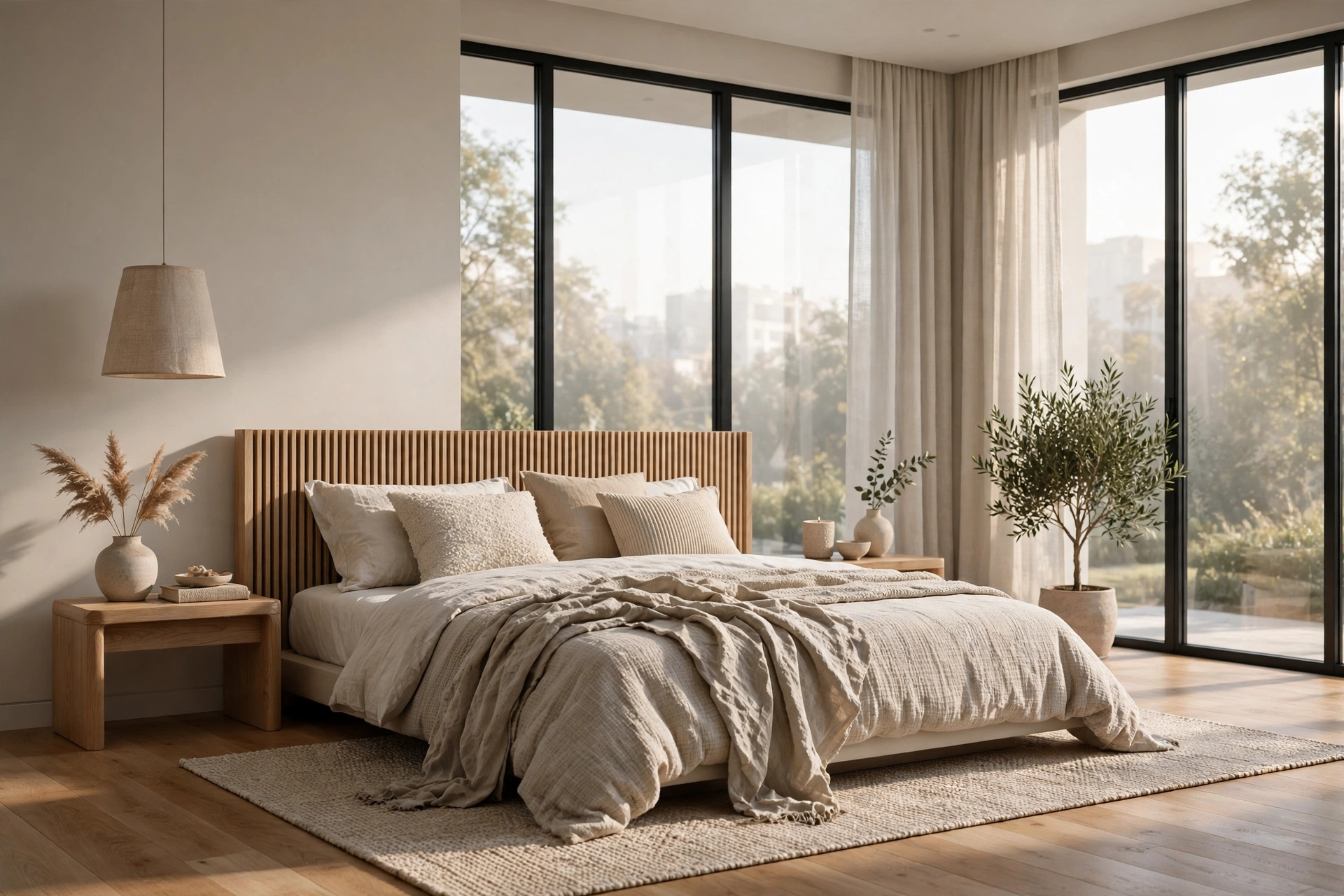
Corona and V-Ray come from the same company and share a quality ceiling, but they feel different. Corona is easier to learn, needs fewer settings to look good, and its interactive rendering and LightMix make iteration faster. V-Ray offers deeper control over every aspect of light and materials, and it supports more host programs, including SketchUp and Rhino, while Corona is limited to 3ds Max and Cinema 4D. For most interior-focused beginners, Corona is the faster route to beautiful work. Our V-Ray for SketchUp beginner guide covers the alternative path for SketchUp users, and our guide to Lumion Real Skies shows how real-time tools handle the same lighting problems differently. If you are weighing hiring a studio against learning a renderer yourself, our 3D rendering cost per image guide shows what professional stills cost in 2026.
Frequently Asked Questions
Is Corona Renderer good for beginners?
Yes. Corona is one of the easiest photorealistic renderers to learn because its defaults produce good light with minimal settings, and interactive rendering shows changes immediately. Most beginners produce portfolio-quality interiors within a few weeks.
Does Corona work with SketchUp?
No. Corona runs inside 3ds Max and Cinema 4D only. SketchUp users who want a similar quality level should use V-Ray, which has a native SketchUp plugin.
How long does a Corona render take?
A quality interior still typically takes 20 minutes to an hour on a modern multi-core processor, depending on resolution and scene complexity. Interactive test renders update in seconds at low resolution.
What is LightMix in Corona?
LightMix is a render element that records each light separately, so you can change the brightness and color of individual lights after rendering, without re-rendering the scene. It is one of Corona's most valuable features for client revisions.
How much does Corona Renderer cost?
A solo license costs roughly $300 to $400 per year through Chaos, with a free trial available. Bundle options with V-Ray and other Chaos tools are available for studios that need more than one renderer.
Do I need a powerful computer for Corona?
Corona renders on the CPU, so a strong multi-core processor and at least 32 GB of RAM matter more than the graphics card. A good GPU still helps for viewport work in 3ds Max or Cinema 4D.
Want a photorealistic interior without learning a new renderer? Our studio produces interior and exterior renders from your drawings, with fixed pricing and fast turnaround. Contact us with your plans and we will recommend the right package for your project.
Written by
Architecture Designing Team
3D Visualization Studio