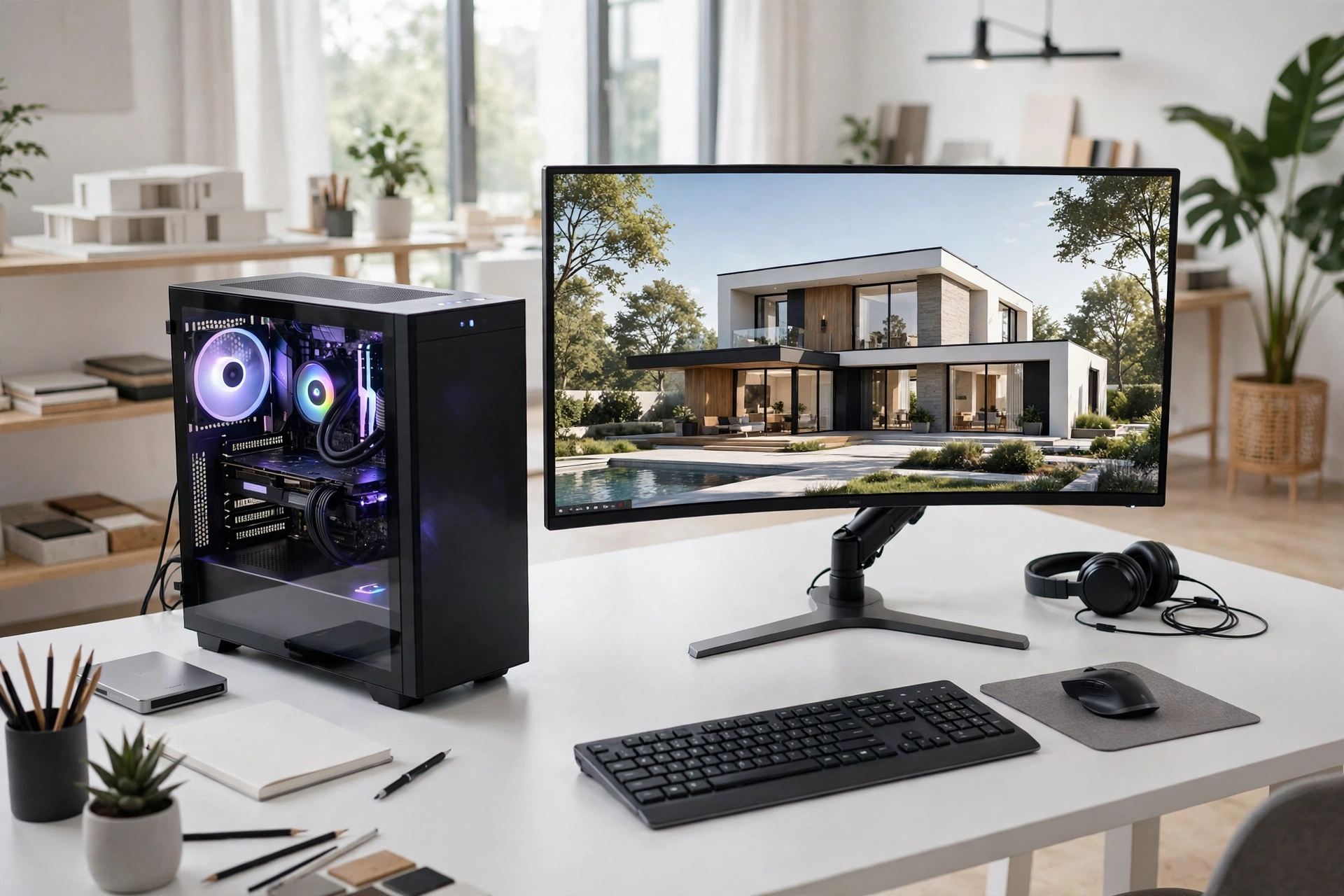
Rendering PC Hardware Requirements: 2026 Guide
A slow PC turns every render into a waiting game. You change one material, press render, and watch the progress bar crawl while the deadline moves closer. For an architectural visualization artist, the computer is the production line: every still image, every animation frame, and every client revision passes through it. The right hardware pays for itself in faster turnarounds.
This guide covers the rendering PC hardware you need in 2026: the GPU, CPU, RAM, and storage that matter for architectural visualization, with concrete prices and three complete builds for different budgets. Whether you render in V-Ray, Corona, Lumion, D5 Render, or Blender, the same rules apply, so read this before you spend a cent on new hardware.
CPU vs GPU Rendering: Know Which One You Are Buying For
The first decision is which part of the computer does the rendering. CPU renderers, such as Corona and V-Ray CPU, spread the work across processor cores, and more cores mean faster renders. GPU renderers, such as V-Ray GPU, Octane, and Redshift, run the same work on the graphics card, and they are often several times faster for the same scene. Real-time engines such as Lumion, Enscape, and D5 Render are GPU only, and they need a strong graphics card just to show the scene smoothly.
Most studios in 2026 render on the GPU for stills and animations, and keep the CPU for modelling, scene setup, and post-production. That makes the graphics card the single most important purchase, and it is where most of your budget should go. But a weak CPU still slows you down: opening a large Revit or SketchUp model and running Photoshop both lean on the processor. The rule is simple: buy the best GPU you can afford, then pair it with a modern CPU that has at least 12 cores. Our best rendering software roundup for 2026 explains which engines use the CPU and which use the GPU, so check it before you choose your hardware.
GPU: The Heart of a Rendering PC
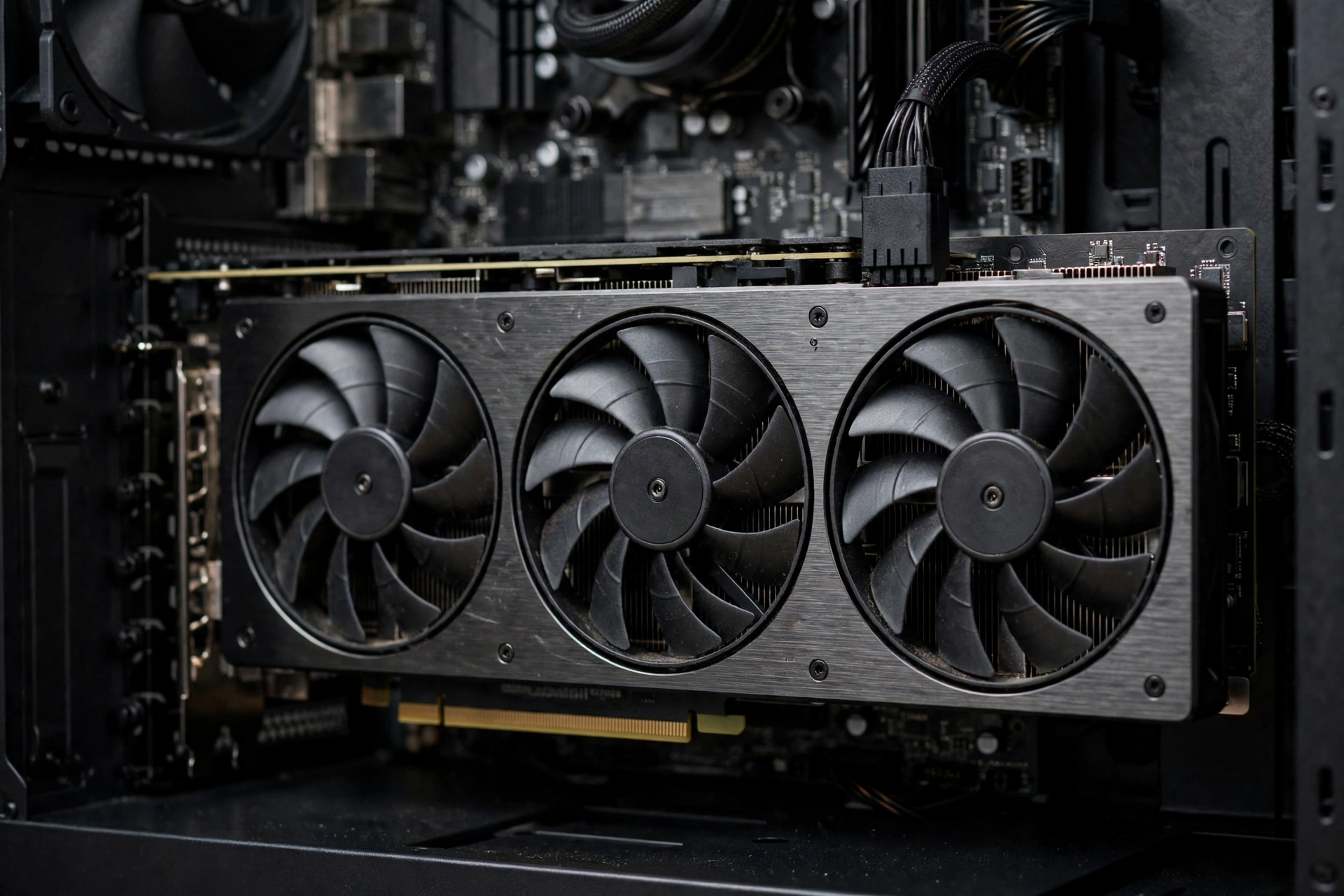
The graphics card decides how fast your renders finish and how large a scene you can work with. The key number is VRAM, the memory on the card, because the whole scene, geometry, textures, and lighting data, must fit in it. A card with too little VRAM will either fail to render a large scene or fall back to slow system memory. For archviz in 2026, 12 GB of VRAM is the practical minimum, 16 GB is the comfortable standard, and 24 GB is what you want for large commercial scenes and 4K output.
NVIDIA dominates archviz because its CUDA cores and OptiX ray tracing are supported by nearly every renderer. The practical 2026 picks are the RTX 5070 with 12 GB at around $550 to $650, the RTX 5080 with 16 GB at around $1,000 to $1,200, and the RTX 5090 with 32 GB at around $2,000. AMD cards such as the RX 9070 XT offer good value for real-time engines, but they lag behind NVIDIA in CUDA-based renderers. Buy the card with the most VRAM you can afford, because VRAM, not raw speed, is what limits the scenes you can take on.
CPU: Still Important for Modelling and CPU Rendering
The CPU matters most for two jobs: modelling in SketchUp, Revit, or 3ds Max, and rendering with CPU engines such as Corona. Modelling is mostly single-threaded, so a high clock speed keeps the viewport smooth when you orbit a heavy model. CPU rendering is the opposite: it scales almost perfectly with core count, so a 16-core processor renders roughly twice as fast as an 8-core one.
Good 2026 choices are the AMD Ryzen 9 9900X or 9950X, with 12 to 16 cores at around $450 to $650, and the Intel Core i9-14900K or Core Ultra 9 285K at a similar price. If you render mainly in Corona or V-Ray CPU, consider a workstation chip such as the AMD Threadripper, which starts around $1,500 but can cut CPU render times in half. For most artists, a 12 to 16 core desktop CPU is the sweet spot: fast enough for modelling and strong enough for CPU rendering. Pair it with a good air cooler or a 240mm liquid cooler, because a hot CPU throttles itself and renders slowly.
RAM: How Much Do You Really Need?
RAM is the workspace where your scene lives while you work. Too little RAM and the computer starts swapping to disk, which makes everything crawl. For archviz in 2026, 32 GB is the minimum for professional work, 64 GB is the recommended amount for most artists, and 128 GB is worth it if you work on large commercial projects or scenes with many high-resolution textures.
The rule of thumb is simple: 32 GB handles single residential interiors and exteriors comfortably. 64 GB handles multi-building developments and 4K texture sets without complaint. 128 GB is for artists who keep several heavy applications open at once while rendering in the background. Buy DDR5 memory in two sticks, not four, so you can add more later, and choose a speed of 5600 MHz or higher. RAM is one of the cheapest upgrades you can make, and it is the one that most often turns a sluggish machine into a smooth one.
Storage: Fast SSDs and Room for Libraries
Storage affects your work more than most artists expect. A fast NVMe SSD opens a 2 GB scene in seconds where an old hard drive takes a minute, and it keeps the system responsive while a render runs. Every rendering PC in 2026 should have at least a 1 TB NVMe SSD as its main drive, with a second 2 TB SSD for project files and texture libraries.
Keep it simple: one fast NVMe drive for Windows and applications, one larger drive for active projects, and a big external drive for finished work and backups. Texture libraries and HDRI packs grow fast, so buy more space than you think you need, and back up your work: a 4 TB external drive costs under $100 and is the cheapest insurance a studio can buy.
Three Rendering PC Builds for 2026
Here are three complete builds that work for archviz in 2026. Prices are approximate and cover the tower only, not the monitor or peripherals.
Starter build, around $1,500: AMD Ryzen 7 9700X, RTX 5070 with 12 GB VRAM, 32 GB DDR5 RAM, 1 TB NVMe SSD, and a 750W power supply. This build handles residential interiors, exteriors, and real-time engines comfortably, and it renders 4K stills in V-Ray GPU or D5 Render without complaint. It is the right choice for a freelancer starting out.
Mid-range build, around $3,000: AMD Ryzen 9 9950X with 16 cores, RTX 5080 with 16 GB VRAM, 64 GB DDR5 RAM, 2 TB NVMe SSD plus a 2 TB project drive, and an 850W power supply. This is the workhorse most professional artists use: fast enough for large residential and commercial scenes and capable of overnight animation renders. If you can only afford one serious upgrade, this is the tier to aim for.
Professional build, around $6,000 and up: AMD Ryzen Threadripper or Intel Xeon W with 24 or more cores, RTX 5090 with 32 GB VRAM, 128 GB DDR5 RAM, 4 TB of NVMe storage, and a 1000W power supply. This is for studios rendering animations daily or working on large developments. It is overkill for a single freelancer, but for a studio it pays for itself in turnaround speed. Our 3ds Max archviz workflow guide shows what this kind of hardware enables in a real production pipeline, and our Blender archviz guide covers the free software path that runs well on any of these builds.

Frequently Asked Questions
How much VRAM do I need for architectural rendering in 2026?
12 GB is the minimum for professional work, 16 GB is the comfortable standard, and 24 GB or more is best for large commercial scenes and 4K output.
Is the GPU or the CPU more important for rendering?
It depends on your renderer. GPU engines such as V-Ray GPU, Octane, and D5 Render need a strong graphics card. CPU engines such as Corona need many processor cores. Most studios in 2026 render on the GPU, so the graphics card usually gets the biggest share of the budget.
How much RAM do I need for 3D rendering?
32 GB is the minimum for professional archviz, 64 GB is recommended for most artists, and 128 GB is worth it for large commercial projects or scenes with many high-resolution textures.
Can I render on a laptop, or do I need a desktop?
You can render on a laptop, but a desktop of the same price is faster, cooler, and upgradable. Choose a 16-inch or larger laptop with an RTX 5070 or better and 32 GB of RAM if you need portability.
How much should a rendering PC cost in 2026?
A capable starter build costs around $1,500, a professional mid-range build costs around $3,000, and a high-end studio workstation costs $6,000 or more. Spend the biggest share on the graphics card.
The best rendering PC is the one that matches the work you actually do. Buy the strongest GPU your budget allows, give it enough VRAM for your scenes, pair it with a modern multi-core CPU and 64 GB of RAM, and put everything on fast NVMe storage. Then spend the time you save on the part no hardware can replace: the lighting, the materials, and the eye that makes a render feel real.
If you would rather skip the hardware question entirely and have a studio render your project for you, talk to our team. Send us your drawings and your brief, and we will handle the modelling, the rendering, and the delivery, on hardware that is already paid for.
Written by
Architecture Designing Team
3D Visualization Studio